
How to A/B Test Video on Shopify Product Pages (Free)
By Foxr Team · Foxr · · 11 min read
To A/B test video on a Shopify product page with Foxr Shoppable Videos & UGC, open a widget, click the "A/B test" tab, click "Create variant B", change one thing in variant B, turn on "Run this test", click "Variant A", then Save. The app splits shoppers between the two versions, counts views and orders for each, and tells you when one is ahead by more than chance.
Plan on about a week. Each version needs at least 500 views before the app will call a winner.
Key takeaways
- Change one thing. Then you know what made the difference.
- Variant B starts as an exact copy. You edit it, and shoppers are split at random.
- The winner is picked by orders per view. Not revenue. Not add to cart.
- Each version needs 500 views, and a gap that is statistically significant at 95% confidence.
- Run it at least a full week, so weekdays and weekends both count.
- Click "Variant A" before you Save. Saving from Variant B resets Placement to "Global / any page".
- It compares two widget versions. It doesn't compare video with no video.
Words used in this guide
An A/B test runs on one widget. It shows each shopper one of two versions.
| Term | What it means |
|---|---|
| Widget | One arrangement of your clips on the store, with its own layout and design. Example: a row of story circles. |
| Layout | How a widget arranges its clips: Stories, Carousel, Grid, Pop up, or Product page. |
| Placement | The kinds of pages a widget is allowed to show on. It never moves the block for you. |
| Variant A / Variant B | The two versions of a widget. B starts as an exact copy of A. |
| Orders per view | Orders a version earned divided by the times it was shown. The app picks the winner with this. |
What you can test
Almost anything about the widget:
- Layout. Stories vs Carousel vs Grid vs Pop up.
- Sizes, shapes, rings, colors, product chips.
- The player. Fullscreen, mini player, or playing inside the card.
- Heading, clip order, and minimum clips.
- The clips themselves. A different set, or a different first clip.
Two things are shared by both versions: the widget name and the placement. That keeps it fair, since both run in the same spot.
Product page widgets can only test against another Product page layout. Both versions use it, or neither does. For a product page test, you'd test things like which clips show, how many clips are on screen (default 3), or whether to show captions.
Some things may do nothing in a test, because shop-wide Settings can override them:
- The add-to-cart button colors always come from Settings → Appearance.
- A widget's share button, Start with sound off, and Show captions only make a difference while the matching setting in Settings is off. Show share button is on in Settings by default.
Good first tests for product pages
Pick one:
| Test | Version A | Version B |
|---|---|---|
| First clip | Your usual first clip | A different clip that answers the top doubt |
| How many clips | 3 on screen | 2 on screen, or 4 |
| Which clips | Only clips tagged with this product | Every clip in the widget |
| Captions | Off | On |
| Clip order | Manual | Shuffle on every visit |
| Preview videos | Featured clip only | Off |
Not sure what to film? See 12 shoppable video ideas.
Write a test plan first
Fill in this one line before you build anything:
If we change [one thing], then [metric] will go up, because [reason].
For example: "If we lead with the fit clip, then orders per view will go up, because fit is the top doubt in our chats."
Then decide:
- The metric. The app's winner is picked by orders per view. Add-to-cart rate is a useful second look.
- The length. At least a week, and 500 views per version.
- The stop rule. Don't end early because one version leads on day 2.
- Who's in it. Your own visits are counted, so use a private window sparingly.
Video vs no video: how to test it
The app compares two versions of a widget. It can't compare a widget with no widget. For that question:
- Before and after. Use equal periods, with no sale in either. Read how to measure ROI.
- A page-level testing tool. It can show half your shoppers a page with no video. Check how it handles Shopify theme changes before you rely on it.
Don't compare products with video to different products without it. They're different products, so the test isn't fair.
Step by step
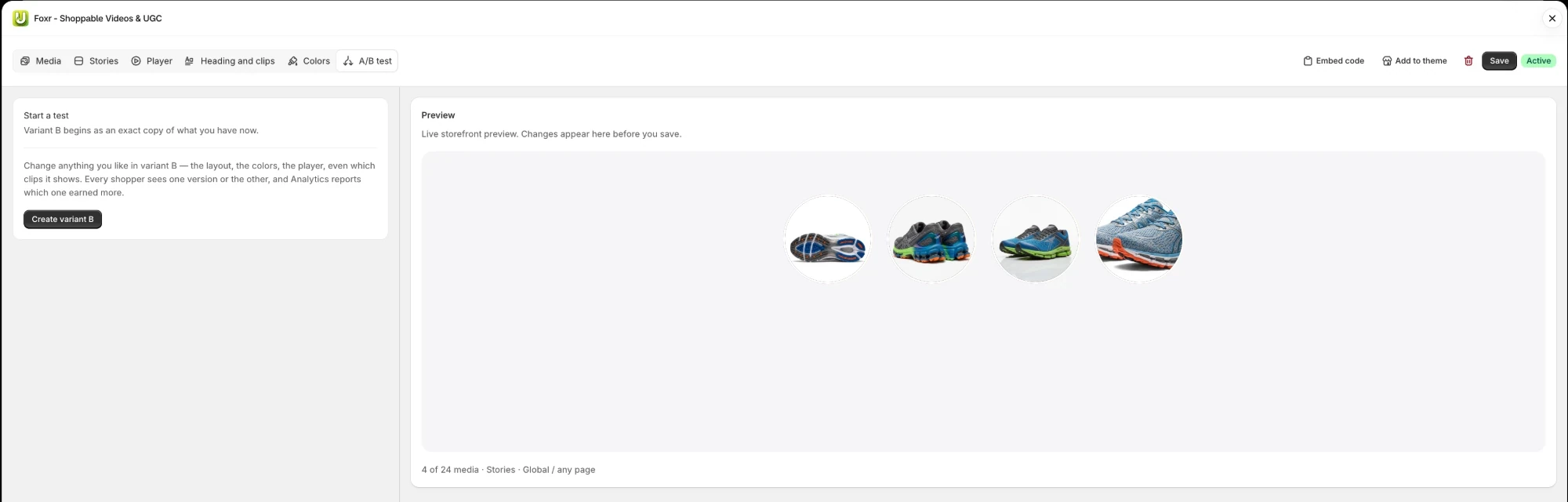
- Pick one thing to test. Write down your guess first.
- Open the widget. In the app, click Widgets, open the widget, and click the A/B test tab.
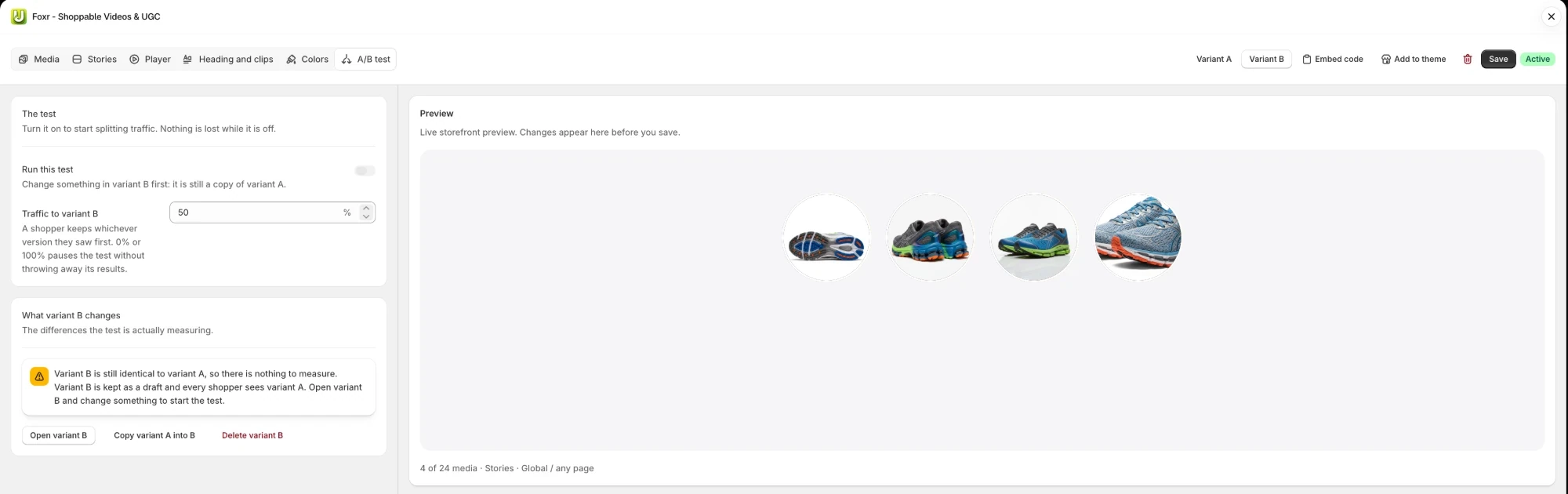
- Click Create variant B. It starts as an exact copy. The editor switches to it, and Variant A and Variant B buttons show in the top bar.
- Change that one thing in Variant B, on any tab. To change its clips, use the Media tab. The preview shows the version you're editing.
- Go back to the A/B test tab. Check What variant B changes. It lists every difference, like "Layout: Stories → Carousel".
- Turn on Run this test. Leave Traffic to variant B at 50%.
- Click Variant A in the top bar, then click Save. The test starts as soon as you save.
The Save gotcha
Always click Variant A before you click Save. Saving while Variant B is selected resets the widget's Placement to Global / any page. Variant B's own settings still save correctly. If it already happened, click Variant A, set Placement again on the Media tab, and save. A Product page widget goes back to Product pages by itself when you save from Variant A.
If variant B is still the same as A
Then there is nothing to measure. Saving keeps variant B, but saves the test as paused, with Run this test off. Change something and turn it on again.
More than 3 changes
If variant B changes more than three things, the tab warns you. A win then tells you which version sells better, not which change did it.
How shoppers are split
- Each shopper gets A or B at random, using your Traffic to variant B percentage. It goes up in steps of 5.
- They keep seeing the same version on later visits, because the choice is saved in their browser.
- Shoppers with browser storage blocked may get a new draw on each page.
- Your own visits are assigned a version and counted too. A private window gives you a fresh draw.
- Changing the percentage only affects shoppers who haven't seen the test yet. Setting 0% or 100% sends every new shopper to one version. Returning shoppers keep theirs.
How long to wait
- At least 500 views per version. A view is one page load on which the widget was shown, not one shopper. A shopper who visits five pages counts five views.
- At least a full week.
- To estimate days: divide 500 by the views one version gets per day. A widget with 200 views a day at 50% gives each version 100 a day, so about 5 days. Wait a full week anyway.
There is no automatic end date and no auto-winner. A test runs until you end it.
Read the results
Results show in two places:
| Where | What it shows | Date range |
|---|---|---|
| Widgets page | Variant A and B rows with Views, Orders, CR, and Revenue (arrow next to the A/B test badge). A Winning badge appears when one is significantly ahead. | All time |
| Analytics for the widget | The A/B test section: what B changes, the verdict, orders per view, and a table. | The range you pick (30 days by default) |
To read it:
- Click Widgets, then the chart button (View analytics) on the widget's row.
- Set Date range to All time if the test ran more than 30 days.
- Scroll to A/B test. Read the verdict first.
The verdict
| Message | Meaning |
|---|---|
| Still collecting. | One version has fewer than 500 views. A bar shows progress. |
| Variant A wins / Variant B wins | One version has more orders per view, and a gap that size is unlikely to be chance. |
| No clear winner yet. | Both have enough views, but they're too close to call. |
A win reads like "Variant B wins: 23.4% more orders per view, and a difference this size would happen by chance about 1.2% of the time." The percentage always compares B with A. So when A wins it says "fewer", meaning B got that much fewer orders per view.
If the Analytics verdict and the Winning badge disagree, set Analytics to All time. The badge always uses all time.
How the winner is decided
- It compares orders per view: orders a version earned ÷ times it was shown. Revenue and add-to-carts are shown but don't decide the winner.
- Each version needs 500 views.
- A winner is called only at 95% confidence. A gap that size would happen by chance less than 5% of the time.
- Orders are credited to the version the shopper saw when they added the product.
Because of how sales are credited, shoppers who decline tracking aren't counted. See how to measure ROI.
End the test and keep the winner
- On the Widgets page, click End test on the widget's row.
- Read the recommendation. If one version is significantly ahead, it's marked "winning" and selected for you.
- Pick Variant A or Variant B. Each shows its all-time views, orders, conversion rate, and revenue.
- Click Keep variant A or Keep variant B.
This can't be undone. The version you keep becomes the widget, and the other is discarded. Traffic stops being split at once. The widget's own totals keep all their history. After ending, the Widgets page shows "Past A/B test" with each version's final numbers. The Analytics A/B section only shows while a test runs, so note the results first.
To keep A from inside the editor instead, click Delete variant B on the A/B test tab, then save.
What the Widgets page badges mean
| Badge | Meaning |
|---|---|
| A/B test · 2 variants | A test is running, with how long it has run. Click the arrow to see each version's numbers. |
| A/B test paused | The widget has a variant B, but the test is switched off. |
| Past A/B test | The test has ended. Each version's final numbers are kept. |
Pause a test
- Open the widget and click the A/B test tab.
- Turn off Run this test.
- If Variant B is selected, click Variant A, then Save.
Everyone sees variant A while B waits. Numbers already collected are kept. To carry on, turn it back on and save.
What if there's no winner?
That's a real result. It means the change didn't matter much, at your traffic. Try a bigger change, like a different first clip or a different layout. Or run a longer test.
Don't end a test early because B looks ahead on day 2. Small samples swing.
Rules for fair tests
- One change per test.
- Don't launch a sale mid-test.
- Don't change the clips' tags or product prices mid-test.
- Keep the same placement. It's shared.
- Write your guess down first, so you can learn from the result.
- Run one test per widget at a time.
- Beware of old numbers. A new test on the same widget adds to the same Variant A and B numbers as earlier tests. To look at the new test alone, pick a 7, 30, or 90-day range that starts after the old test ended.
Limits
- Two versions only. No A/B/C tests.
- Not video vs no video. It compares two versions of a widget.
- Deleting a clip that variant B relies on can end the test. If B is left with no clips, it's removed and A is kept.
- Your own visits count, and shoppers who decline tracking aren't credited.
- Low traffic means long tests. At 50 views a day, each version gets 25, so 500 views takes about 20 days.
- New app. Launched September 25, 2026. On November 12, 2026, it had 5.0 stars from 7 reviews.
FAQ
Is the A/B test free?
It's part of Foxr Shoppable Videos & UGC, which is free on the Shopify App Store.
Can I test layouts?
Yes. Switch between Stories, Carousel, Grid, and Pop up. Product page widgets can only test against Product page.
What's a good traffic split?
50% is the default and gives the fastest read. You can use 20% or 30% if you want to protect your current version, but the test takes longer.
Does it work on a product page?
Yes. Use a Product page widget, and test things like the clips, the number on screen, and captions. Both versions must use that layout.
Do I need a lot of traffic?
Each version needs 500 views before the app calls a winner. With little traffic, use a longer date range or test a sitewide widget.
Does it show revenue?
Yes. The table shows revenue, but the winner is picked by orders per view.
Next step: run your first test
Pick one product page. Make variant B with a different first clip. Turn on Run this test, click Variant A, and Save. Come back in a week.
Foxr Shoppable Videos & UGC is free on the Shopify App Store.
Facts checked against the app's documentation and listing on November 12, 2026.