
Shoppable Video Ideas: 12 Formats With Shopify Examples
By Foxr Team · Foxr · Updated · 24 min read
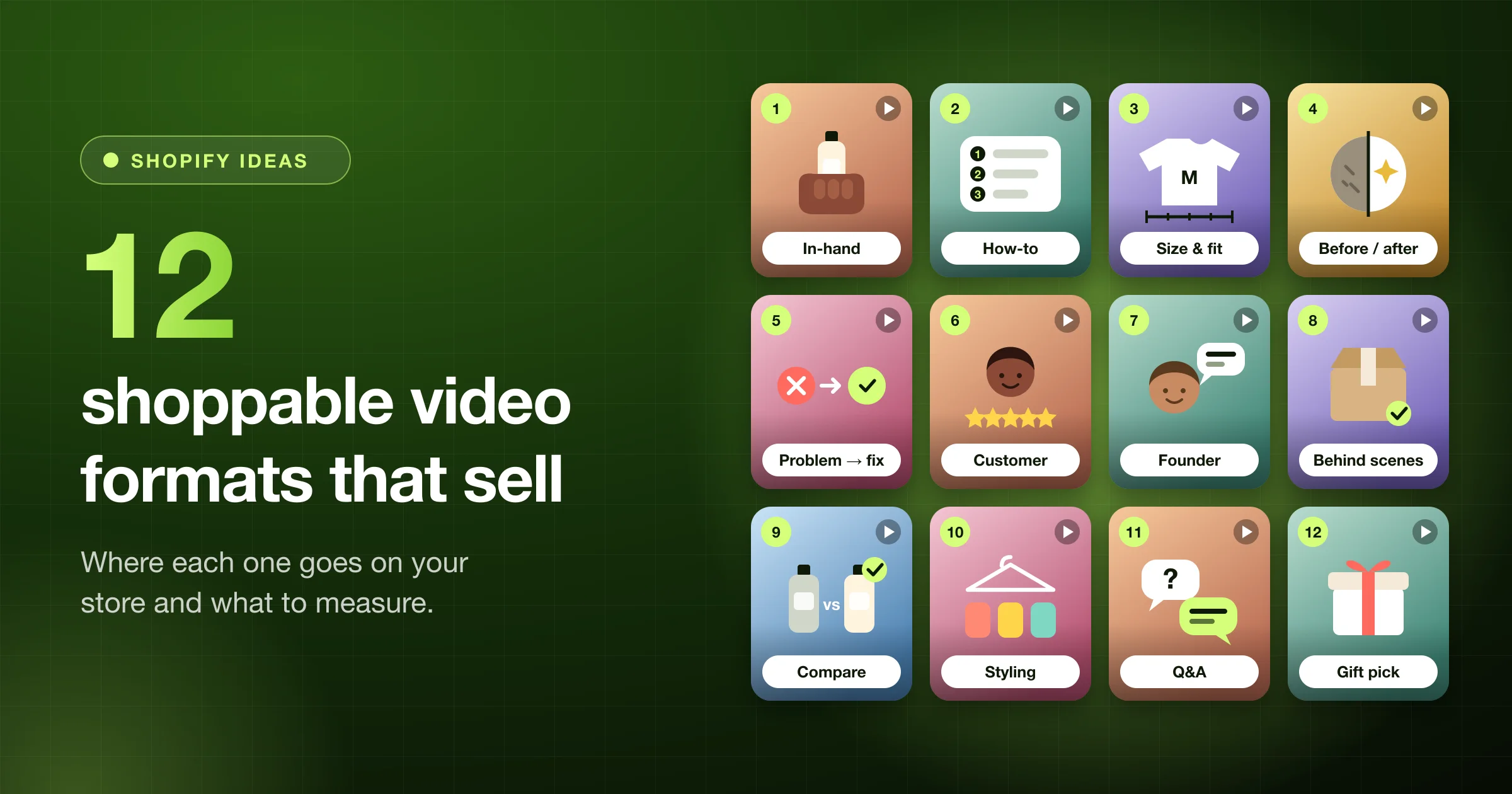
The best shoppable video ideas each answer one shopper doubt. A shoppable video is a short clip with a tagged product, so shoppers can add it to cart while they watch. A doubt is what stops a sale, like "Will it fit?" or "Is it hard to use?"
Below are 12 formats you can film on a phone, from the in-hand look to the gift pick. For each one you get the doubt it fixes, where it goes on a Shopify store, the number to watch, and a made-up example. Then you'll see 5 real Shopify stores (re-checked on October 11, 2026) and a 2-week test plan.
Full disclosure: We make Foxr Shoppable Videos & UGC, so we point to it for layouts and numbers. The examples inside the 12 ideas are made-up and labeled that way. The real-store examples are labeled too. We don't claim a result for any format. Test each one on your own store.
Key takeaways
- Start with the doubt, then pick 3 formats, not 12. One clip per doubt on one best seller is plenty.
- Put each clip where the doubt happens. Fit, shade, and how-to clips go on the product page. Trust clips go on the home page. Gift picks go in a pop up or on a collection page.
- Show the product in the first shot and add subtitles. Thumbnail previews play without sound.
- Measure per clip. Each clip's views, plays, product clicks, adds to cart, and orders tell you what to film next.
How to use this list
Use a simple 4-part method for every video:
- Doubt. What stops the sale?
- Format. Which clip answers it?
- Spot. Where does the doubt happen on your store?
- Number. What will tell you it worked?
Find your doubts first. Look in your pre-sale chats, your reviews, your return reasons, and your search bar. Our guide to raising conversion with video goes deeper.
Then match them:
| The shopper's doubt | Formats to try |
|---|---|
| "Is it good quality?" | In-hand (1), Founder (7), Behind the scenes (8) |
| "How do I use it?" | How-to (2), Problem and fix (5), Styling (10) |
| "Will it fit, suit me, or work?" | Size, fit, or shade (3), Before and after (4), Compare (9) |
| "Can I trust this brand?" | Customer clip (6), Founder (7), Q and A (11) |
| "What should I buy?" | Styling (10), Gift pick (12) |
12 shoppable video ideas (with examples)
The spots and numbers below use the names in Foxr Shoppable Videos & UGC, our app. Other apps use different names for the same things.
1. The in-hand look or unboxing
- What it is: The product held, opened, or worn, close to the camera. A hand gives it scale. For an unboxing, show what's in the box and how it's packed.
- Doubt it fixes: "How big is it? Does it look cheap?"
- Where it goes: In a "Product page" widget, put it first or second in the Clips list (use the arrows). By default the strip shows 3 clips at a time ("Clips on screen"), and only the one nearest the middle plays a silent preview ("Preview videos": "Featured clip only"). With 3 on screen, that's the second clip.
- Fine detail tip: For jewelry or texture, try Settings → Videos → "Playback mode": "Quality". Some browsers can't play iPhone HEVC .mov files on Quality. If a clip won't play, switch back to "Performance", as the app's docs advise.
- Measure: Product clicks and Added to cart on this clip's card, under "Clips" in the widget's analytics.
- Made-up example: A candle brand films the lid coming off, the flame lighting, and a hand next to the jar for size.
- Real example: Tula's scrub page shows the jar and the scrub on skin, in a regular product video. See real examples.
- Avoid: Opening on a logo. Show the product in the first shot.
2. The 20-second how-to
- What it is: The product working in 3 steps or fewer.
- Doubt it fixes: "Is this hard to use?"
- Where it goes: Add the "UGC widget" block for your "Product page" widget under the buy buttons or near the description in your product template. The app's docs suggest those two spots.
- Measure: Click-through rate (product clicks ÷ plays) and Add-to-cart rate (added to cart ÷ product clicks). Low click-through? The app's docs say to tag a product on each clip. Low add-to-cart? They say to check the price, photos, and stock.
- Made-up example: A coffee brand shows the pour-over kit: add grounds, pour, wait, drink.
- Real example: Wild One's cat tunnel page shows how the tunnels connect, in a regular product video. See real examples.
- Avoid: Talking for 10 seconds before the first step.
3. The size, fit, or shade check
- What it is: The product on a real body, in a real room, next to everyday things, or swatched on skin.
- Doubt it fixes: "Will it fit me? Will this shade suit me? Will it fit my space?"
- Where it goes: Use Layout "Product page" and leave "Which clips" on "Only clips tagged with this product", so each product page shows only its own fit clips. To tag a clip, open it, set "Link type" to "Product" under "Call to action", click "Add product", and pick the product. To hide the strip on products with no fit clip, turn off "Show every clip when none match". With it off, save the widget again after you tag a product's first clip.
- Measure: Product clicks and Added to cart on the clip's card. Outside the app, watch your return reasons over the next month.
- Made-up example: A tote bag brand shows the bag on a shoulder, then holding a laptop and a water bottle.
- Made-up example (beauty): A lip tint brand swatches one shade on three skin tones in one clip, and tags that product.
- Real example: Spell by Smokeshow's home page carousel of try-on clips. See real examples.
- Avoid: One body type or skin tone only. Show more than one person if you can.
4. Before and after
- What it is: The state before the product, then the result.
- Doubt it fixes: "Does it really work?"
- Where it goes: A "Product page" strip. Or a "Grid" (Placement "Pages") on a results page with its own page template, so it doesn't show on every page (how).
- Measure: Click-through rate (product clicks ÷ plays). Work it out from the Plays and Product clicks on the clip's card.
- Made-up example: A cleaning brand shows a stained pan, one wipe, then the same pan.
- Avoid: Edits that exaggerate. Only show what the product really does. Claims that sound like health results need extra care.
5. Problem, then fix
- What it is: Start with the annoying problem. End with the product solving it.
- Doubt it fixes: "Do I need this?"
- Where it goes: A "Carousel" on the home page, and the "Product page" strip.
- Measure: Play rate (plays ÷ views). A play rate of a few percent is normal, because views count every page load, even when nobody scrolls to the widget. To raise it, the app's docs say to move the block higher and put your most eye-catching clip first. Carousel thumbnails are still images by default.
- Let the problem show before the tap: Set "Preview videos" to "Every clip on screen" on the Carousel tab. Previews are silent, so put the problem in on-screen text.
- Made-up example: A phone stand brand opens on a hand holding a phone for a long video call, arm shaking. Then the stand.
6. The customer review clip
- What it is: A real buyer telling you in their own words why they like it.
- Doubt it fixes: "Can I trust this brand?"
- Where it goes: A "Carousel" on the home page. Or a "Grid" (Placement "Pages") on a reviews page with its own page template (how).
- To bring in a customer's reel: Go to Video library → "Add media" → the "Instagram" or "TikTok" tab. Tick "I confirm that I have obtained the necessary permissions, copyrights, and authorizations." Paste up to 5 public post links, click "Find media", then click "Add to library" under the cards. The app doesn't keep the creator's @handle, so note credit yourself. More on this in our shoppable Instagram feed guide.
- Add star ratings: Turn on "Show review score from products" in Settings → Products to show stars like "★ 4.6 (128)" on the product card. It works with reviews apps that save Shopify's standard product rating, such as Judge.me and Yotpo. Stars don't show in the mini player.
- Rules: Get written permission first. Paid or gifted creator clips work the same way, but they need a disclosure on screen, since the FTC counts free or discounted products as a material connection. Our UGC video guide covers permission and the rules step by step.
- Measure: Run an A/B test where variant B adds the customer clips (clip selection is testable). The app names a winner on orders per view (you end the test and keep it yourself).
- Made-up example: A skincare customer holds the bottle and says what changed in her routine.
- Real example: Spell by Smokeshow's carousel of customer try-on clips. See real examples.
- Avoid: Scripted "reviews," or praise you paid for without saying so.
7. The founder story
- What it is: The person behind the brand, in 30 seconds or less. Why they made it.
- Doubt it fixes: "Who are you? Is this a real brand?"
- Where it goes: A "Carousel" on the home page. Or a "Grid" with Placement set to "Pages" on your About page. Use its own page template so it doesn't show on every page (how).
- Measure: Plays and Product clicks on the clip's card. Expect few credited orders. The app only credits a sale when the shopper adds the product from the video, or goes to its page from the video, and buys within 30 days.
- Made-up example: A small tea company's founder holds a tin and says what she couldn't find in other teas.
- Avoid: A long brand film. Keep it short and honest.
8. Behind the scenes
- What it is: How the product is made, packed, or checked.
- Doubt it fixes: "Is it good quality? Is it worth the price?"
- Where it goes: A "Carousel" on the home page. Or tag it to a pricier product so it shows in that product's "Product page" strip.
- Measure: Added to cart and Orders on the clip's card. Outside the app, watch for fewer "too expensive" chats.
- Made-up example: A leather wallet maker shows stitching, edge painting, and a final check.
- Avoid: Showing a messy or unfinished process you wouldn't want shoppers to judge.
9. Side-by-side compare
- What it is: Your product next to a generic version, or next to the old way of doing it.
- Doubt it fixes: "Why this one and not a cheaper one?"
- Where it goes: A "Product page" strip, for products with many lookalikes. Or a "Stories" row at the top of a collection page (Placement "Collection pages"). Give that collection its own template, or the row shows on every collection.
- Measure: Click-through rate (product clicks ÷ plays).
- Made-up example: A water bottle brand shows how long ice lasts in its bottle and in a plain one.
- Avoid: Naming other brands or making claims you can't back up. Compare against "a basic one."
10. Styling or "3 ways to use it"
- What it is: One product shown in 3 different ways, outfits, or rooms.
- Doubt it fixes: "How would I use this? What goes with it?"
- Where it goes: A "Carousel" with "Heading text" set to "Shop the look" (Heading and clips tab, up to 120 characters). Keep "Product card" on "Under the clip" (the Carousel default), so each card shows its product.
- One product per clip: The app tags one product per clip, and "Product display" in Settings → Products is greyed out for that reason. For a full look or a get-ready-with-me routine, film one short clip per item.
- Measure: Product clicks and Added to cart on each clip's card.
- Made-up example: A scarf brand ties one scarf three ways: as a headband, a bag charm, and a neck wrap.
- Avoid: Tagging the wrong item. Tag the one you most want to sell.
11. Answer a question
- What it is: Someone on camera answers a real question from chat, email, or reviews.
- Doubt it fixes: "Can I trust this brand? Will they help me?"
- Where it goes: A "Product page" strip near the doubt it answers. Or a "Grid" with Placement "Pages" on your FAQ page, with its own page template (how).
- Add the answer as subtitles: Open the clip → Details → "Upload subtitle file" (.vtt or .srt, up to 512 KB). In Settings → AEO & GEO, "Add video structured data" and "Include the transcript in structured data" are both on by default. With both on, the app adds the subtitle text (about the first 1,200 characters) to the video's structured data as its transcript.
- Measure: Plays on the clip's card. Also watch whether the same question still shows up in chat.
- Made-up example: A pet food shop answers "Can I mix this with my dog's current food?" in 20 seconds.
12. The gift pick or seasonal clip
- What it is: A short "gift for [person]" or seasonal pick, one clip per product.
- Doubt it fixes: "What should I buy?"
- Where it goes: A "Pop up" with Placement "Global / any page", with its block added to the footer so it shows on every page. It appears after "Wait" (5 seconds by default) and plays the first clip in your list. Only one pop up shows at a time. Or a "Stories" row on a gift collection with its own collection template.
- Measure: Product clicks and Orders on the clip's card. Pop up views count every page load, even when the bubble never appeared, so judge it by plays and clicks.
- When the season ends: Set the clip to "Draft" in the Video library. It disappears from every widget within a minute or two, with no widget save. If that leaves a widget below its minimum ("Show only with at least", or "Minimum media to display feed" in Settings → Feeds, whichever is higher), the whole widget hides. Widgets have no on/off switch, so to hide a widget, hide its block in the theme editor.
- Made-up example: A stationery shop films a "for the friend who loves lists" pick: a notebook, a pen, a wrap.
Real examples from Shopify stores
We looked at these stores on October 5, 2026, and re-checked their page code on October 11, 2026. We only describe what we could see. None of them published results, and we don't claim any.
Shoppable video examples built with an app
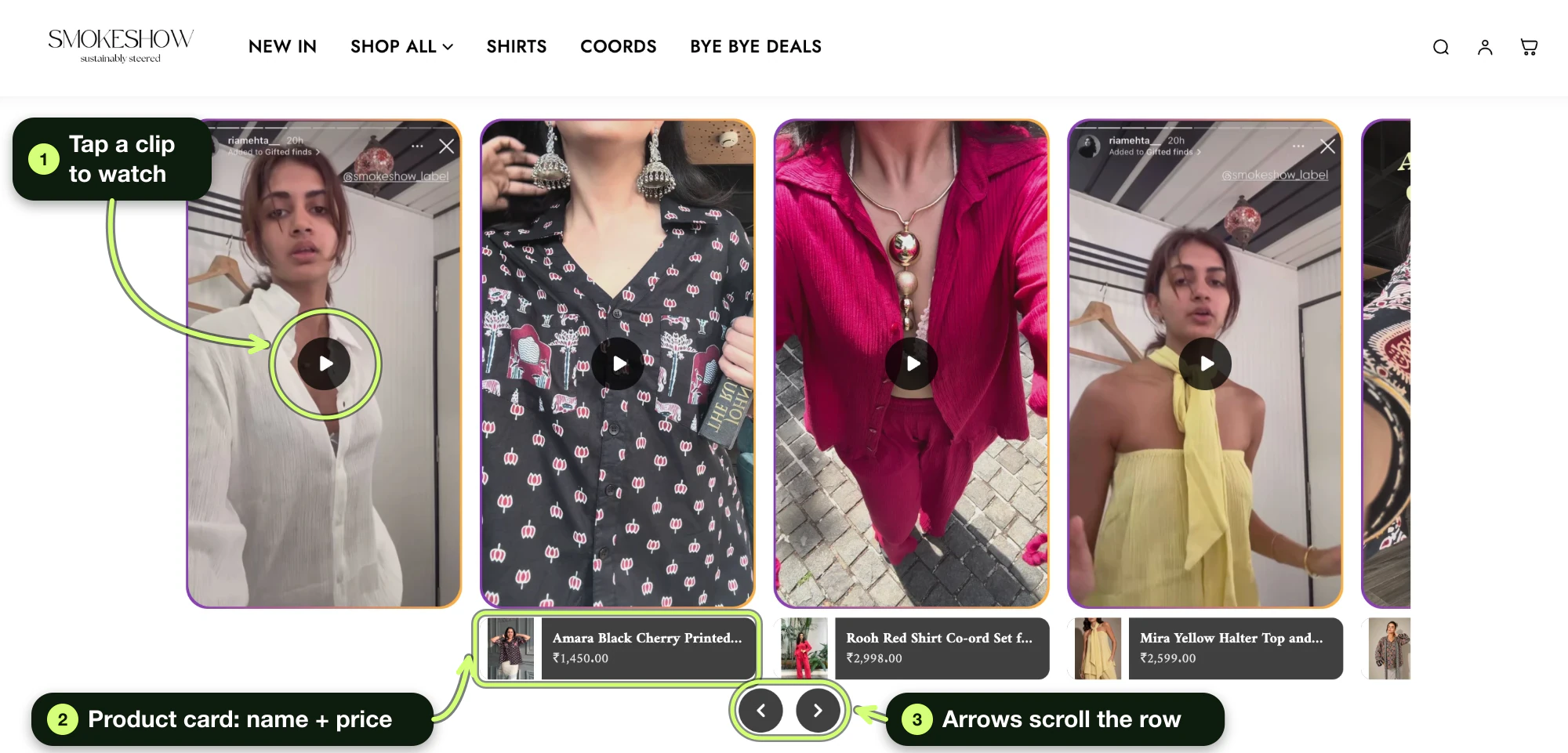
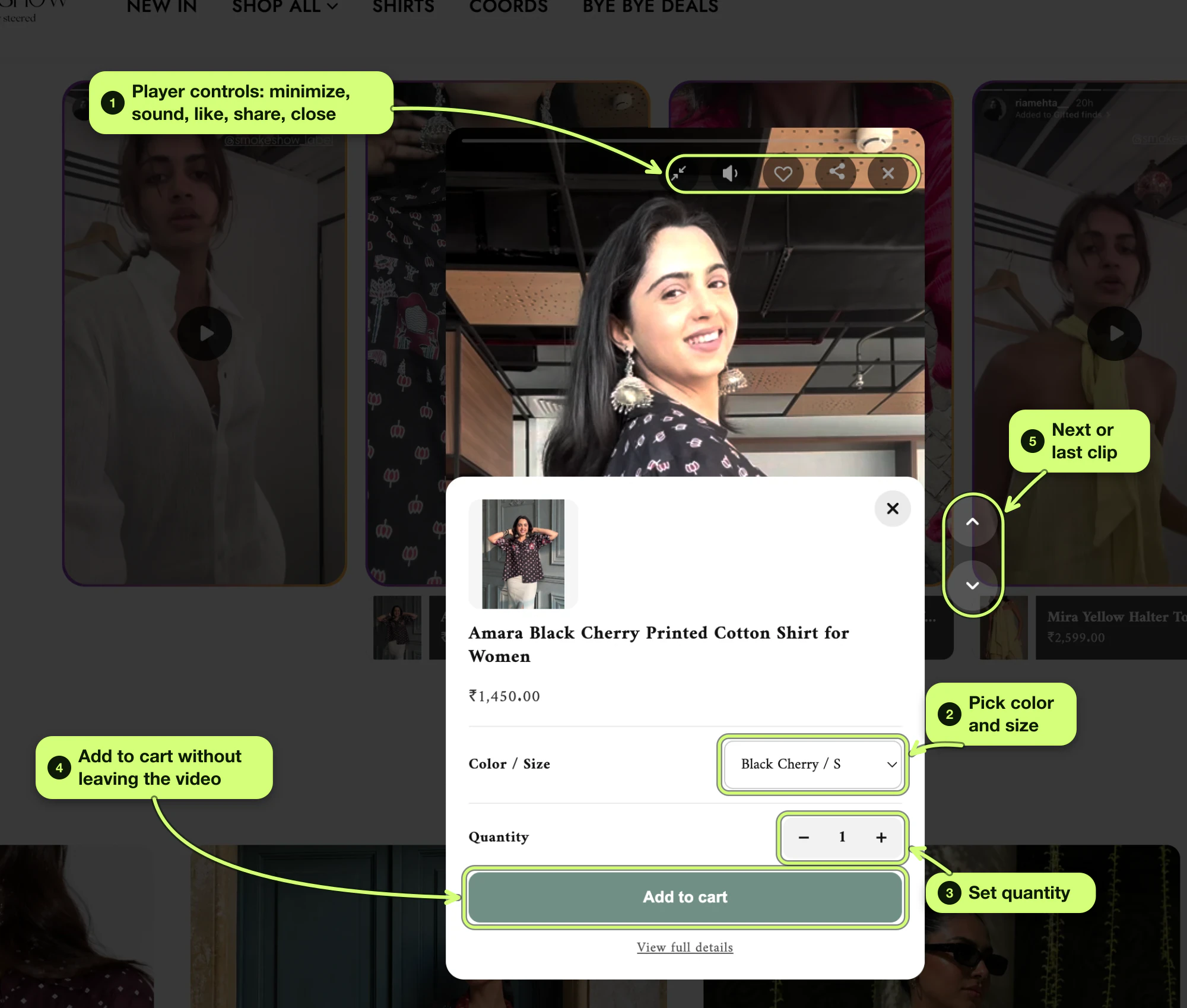
- Spell by Smokeshow runs a carousel of try-on clips on its home page with Foxr Shoppable Videos & UGC. The clips look like Instagram stories tagging the brand. Six of its seven clips have a product card with the name and price, and tapping one opens a quick add panel (checked October 11, 2026). That's formats 3 and 6: size and fit, told by real people.
- Its page code (checked October 11, 2026) shows the app's default Carousel look. Cards are tall 9:16, with product cards under the clips, dark cards, and round arrows below the row.
- ColourPop uses Tolstoy, another shoppable video app (compared here), on its Stuck on U product page. The page code has both a Tolstoy stories block and a Tolstoy carousel. The clips load after the page does, so we couldn't check their formats.
- Dr. Squatch has a Videowise video carousel on its home page, under the heading "Squatch Nation Has Spoken" and the line "Hear it from the guys who made the switch." That points to customer voices (format 6), but we couldn't confirm who made the clips.
Regular product videos (same formats, not shoppable)
These two use plain videos in the product gallery, with no tagged product or add to cart in the video. They're still good models for the format.
- Tula has a muted, looping video in the gallery of its exfoliating scrub page. Its label reads "Video of exfoliating sugar scrub in jar and being applied to skin." That's format 1: a texture close-up.
- Wild One has a gallery video with player controls on its cat tunnel page. Its label reads "Lunar | Connect multiple tunnels to create different shapes." That's format 2: how it works.
Rules for filming shoppable video clips
- Show the product in the first shot. Don't make shoppers wait to see what it is. (Our rule of thumb, not a measured number.)
- Film vertical. On desktop, the Foxr Shoppable Videos & UGC player is a tall 9:16 frame, up to 420 px wide. On phones it fills the screen. Wide (horizontal) clips get cropped unless you turn off "Crop to fit vertical aspect ratio" in Settings → Fullscreen player.
- Keep the product in the center and out of the bottom of the frame. Stories thumbnails are always square crops, and in the player the product card sits over the bottom of the video.
- Plan for no sound. Thumbnail previews always play silent, and some phone browsers (especially on iPhones) start the player muted until a tap. Put key words on screen.
- Add subtitles. Open the clip in the Video library → Details → "Upload subtitle file" (.vtt or .srt, up to 512 KB, one track per video), then "Save". The app doesn't make subtitles for you. Shoppers get a "CC" button in the player, and new subtitles can take up to about 10 minutes to show. Subtitles also help shoppers who are deaf or hard of hearing.
- Upload MP4 or MOV, up to 250 MB each and 8 files at a time.
- Reuse clips on social. Vertical also fits YouTube Shorts (square or vertical, up to 3 minutes), Instagram Reels (1.91:1 to 9:16), and TikTok in-feed ads (9:16 recommended; 16:9 and 1:1 allowed).
Pick your first 3 by store type
These are our suggestions, not measured results.
| Store type | Start with | Why |
|---|---|---|
| Fashion and bags | 3, 10, 6 | Fit and styling are the doubts |
| Beauty and skincare | 3, 4, 6 | Shade, results, and trust |
| Home and kitchen | 2, 1, 9 | Show use, size, and why it's better |
| Food and drink | 2, 8, 12 | Show use, care, and gift picks |
| Jewelry and small items | 1, 3, 6 | Show scale, wear, and trust |
| Gadgets | 2, 5, 9 | Show use, the problem, and why this one |
Where each format goes in Foxr Shoppable Videos & UGC
Here's where each format fits, using the exact names from the widget editor.
| Layout | Placement | Best formats |
|---|---|---|
| Product page | Product pages (locked) | 1, 2, 3, 4, 5, 8, 9, 11 |
| Carousel | Home page | 5, 6, 7, 8, 10 |
| Stories | Home page or Collection pages | 1, 9, 12 |
| Grid | Pages | 4, 6, 7, 11 |
| Pop up | Global / any page | 12 |
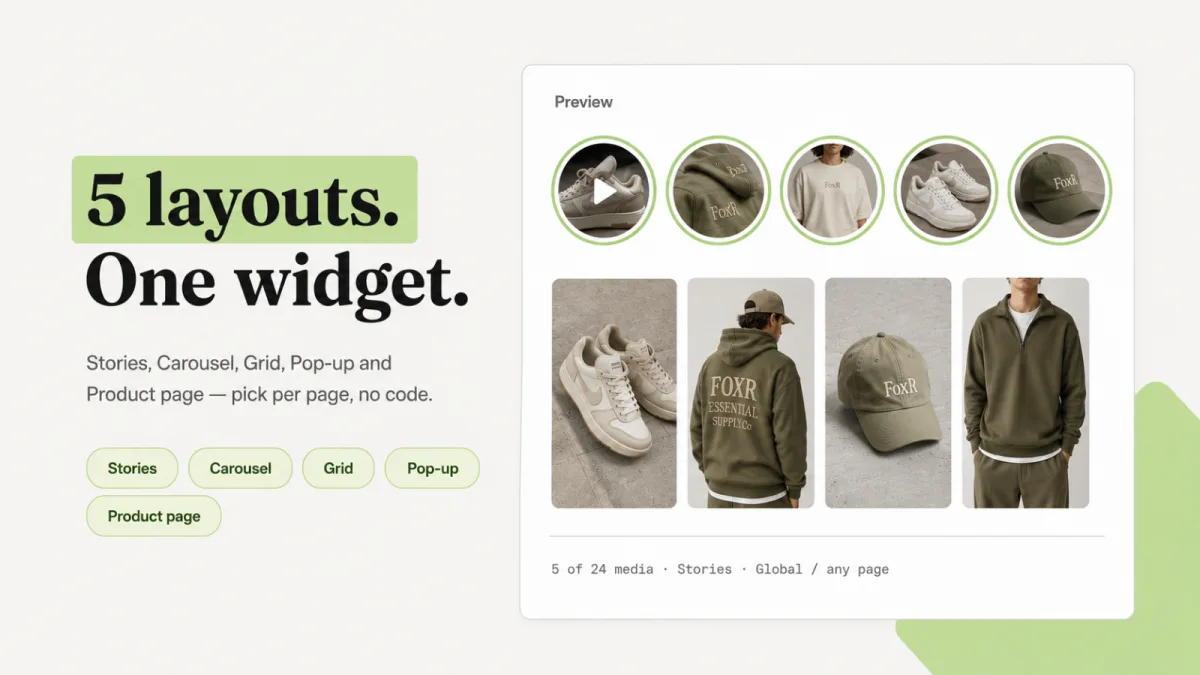
Set both in the widget editor: Media tab → "Basics" → "Layout" and "Placement". Placement only filters page types. The widget shows where you add its "UGC widget" block in your theme.
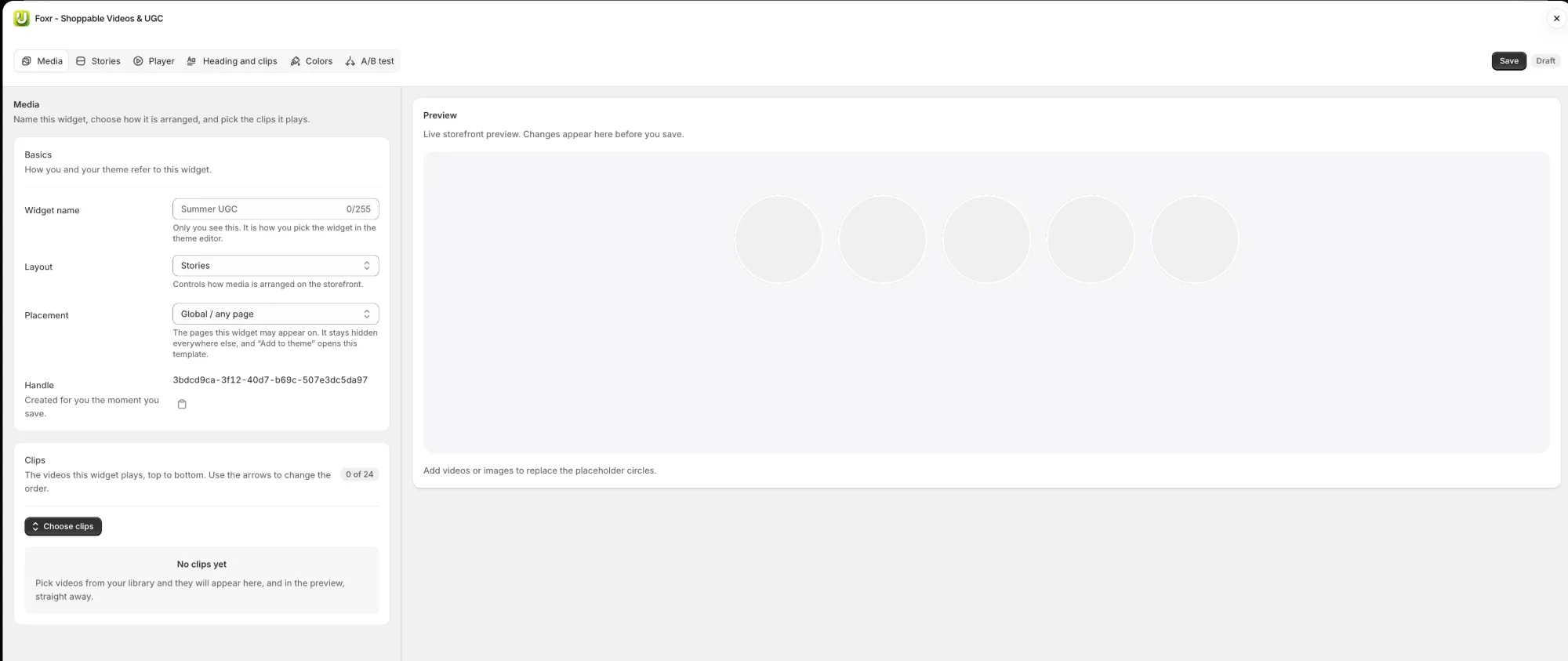
Show a widget on just one page
Placement can't pick one page. "Add to theme" opens your default page or collection template, so a block added there shows on every page that uses it. To show a widget on one page only, give that page its own template:
- In the theme editor, click the "Home page" drop-down, pick "Pages" (or "Collections"), and click "Create template". Name it and click "Create template".
- Add the "UGC widget" block to the new template, click "Select" under "Widget", pick your widget, and click "Save".
- In Shopify admin, go to Online Store → Pages (or Products → Collections). Open the page, choose your template under "Theme template", and click "Save".
These steps follow Shopify Help's templates page, checked on October 11, 2026.
What research says about formats
Not much, and most of it isn't about shoppable video. Here's what we found, with the catches.
- Showing products together can lift sales. In a randomized field experiment, a US fashion retailer added videos showing apparel with matching accessories to 66 of its 319 apparel products. Sales rose 14.5% for those apparel items and 28.3% for the accessories (Kumar and Tan, Management Science, 2015).
- Catches: one retailer, the videos were added in 2012, and they weren't shoppable. In Foxr Shoppable Videos & UGC, a clip shows one product card. So make one clip per item. Or tag the main piece and let the product page sell the rest.
- Showing use can beat showing looks. In online experiments, product usage videos led to higher purchase intention than product appearance videos (Cheng, Shao and Zhang, Frontiers in Psychology, 2022).
- Catches: it measured intent, not sales. The participants were mostly students, recruited through a survey platform in China. And the gap vanished when the product's rating was low, so a bad rating can cancel a good video.
So formats 2 and 5 (the product in use) and format 10 (the product with other items) have some research behind them. Fix weak reviews, too.
Test your first 3 formats in 2 weeks
For the full click-by-click setup with screenshots, see how to add shoppable videos to Shopify.
- Day 1: Pick your best seller with steady traffic. List its top 3 shopper doubts.
- Day 2: Match each doubt to a format from this list.
- Days 3 to 4: Film 3 clips on your phone, one per format.
- Day 5: In Foxr Shoppable Videos & UGC, go to Video library → "Add media" → "Upload" tab. On the "Shopify Files" tab, wait for "Processing" to clear (click "Search" to refresh), select your clips, and click "Add to library". Then open each clip, click "Upload subtitle file", set "Link type" to "Product" under "Call to action", click "Add product", and click "Save".
- Day 6: Go to Widgets → "Add widget". Type a "Widget name" (only you see it), set "Layout" to "Product page", click "Choose clips", pick your 3 clips, and click "Done". Click "Save", then "Add to theme". In the "UGC widget" block, click "Select" under "Widget", then "Save". Switch on "FOXR - Shoppable Video" under "App embeds" (once per theme). The app's widget preview shows desktop sizes only, so check on a real phone.
- Day 7: In Shopify Analytics, note this product's orders for the 7 days before the clips went live. Also note its top 3 pre-sale questions. On day 14, compare both with the 7 days since launch.
- Day 10 or 11: Swap the clip order. The middle clip on screen plays a silent preview by default, so it may get more plays from its spot alone.
- Day 14: Go to Widgets and click the chart button ("View analytics") on the widget's row. Set "Date range" to "Last 30 days" ("Last 90 days" on a quiet store), then scroll to "Clips". Each clip's card shows Revenue, Views, Plays, Product clicks, Added to cart, and Orders. Only clips viewed in that range are listed.
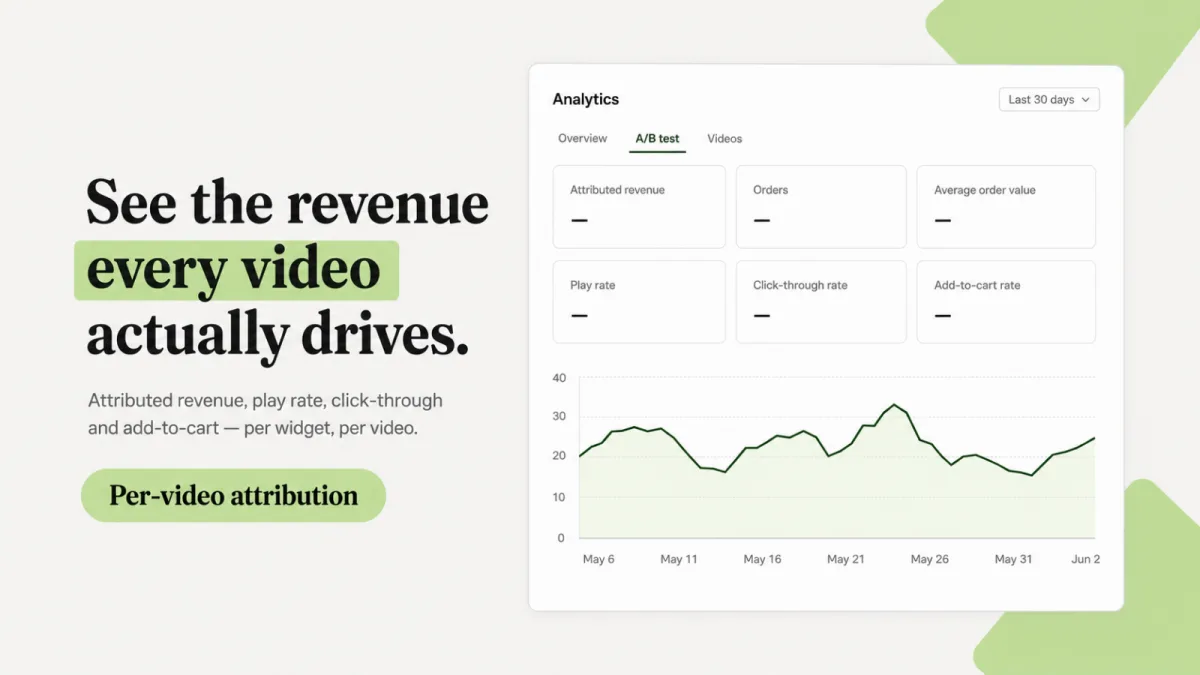
Then keep the clip with the most Added to cart per play on its card (or the most Orders, if any clip has orders). Replace the one with the fewest, and run the plan again. On a quiet store, give each round longer before you judge.
Want a cleaner test? Use the widget's "A/B test" tab.
- Click "Create variant B" and change one thing, like the clip order. Then turn on "Run this test".
- Click "Variant A" before you click "Save". Saving from Variant B resets Placement.
- The app names a winner on orders per view after 500+ views per version, at 95% confidence. Run it at least a full week.
Full steps are in our setup guide.
Read the numbers with care. The app credits a sale only if the shopper adds from the video, or goes from it to the product page, and buys within 30 days from the same cart. Shoppers who decline tracking aren't credited, so conversion rate reads low. More in our guide to video and conversion rate.
How we made this list
- We started with the doubts shoppers have, then matched formats to them.
- We read 13 top-ranking pages on shoppable video and video ideas on October 5, 2026.
- On October 11, 2026, we re-checked the 5 store pages' code and the App Store listing. That's how we found that Tula and Wild One use regular gallery videos, so we moved them into their own group.
- Every Foxr Shoppable Videos & UGC menu path, label, and default comes from its live docs, checked on October 11, 2026.
- Platform sizes come from YouTube, Instagram, and TikTok help pages. Disclosure rules come from the FTC.
- Every example in the 12 formats is made-up. The real-store notes only describe what was visible in page code.
- We left out big lift numbers from vendor blogs that we couldn't trace to a study.
- We left out live shopping. It needs a live-stream app, and Foxr Shoppable Videos & UGC doesn't do live.
- We make Foxr Shoppable Videos & UGC. We put it where it fits, and named its limits.
FAQ
What are some examples of shoppable videos?
Three Shopify stores we checked on October 11, 2026 use shoppable video apps. Spell by Smokeshow runs a home page carousel of try-on clips with Foxr Shoppable Videos & UGC. ColourPop has Tolstoy stories and a carousel on its Stuck on U product page. Dr. Squatch has a Videowise carousel on its home page. Tula and Wild One show the same formats with regular product videos.
What is the best type of shoppable video?
There isn't one. The best format answers the doubt that stops your shoppers most. Start with an in-hand clip, a how-to, or a customer clip, then test.
How long should a shoppable video be?
We suggest 15 to 30 seconds for most formats. It's a starting point, not a measured result. Show the product in the first shot, and add subtitles.
How many shoppable videos should I put on a product page?
Start with 3, one per doubt. In Foxr Shoppable Videos & UGC, a "Product page" widget shows 3 clips at a time by default, and shoppers swipe for more.
- Each product page shows only its own clips. These are the clips tagged with that product.
- Products with no clip show every clip in the widget. Turn off "Show every clip when none match" to hide the strip instead.
- One widget holds up to 24 clips for your whole catalog. At 3 clips per product, that covers 8 products.
- Need more? Make a second "Product page" widget, turn off "Show every clip when none match" in both, and add its block to the same product template.
Can one shoppable video show more than one product?
Not in Foxr Shoppable Videos & UGC. Each clip shows one product, the first one tagged. For a full look or a routine, film one clip per product, or tag the main item. Other apps may allow more, so check before you pick one.
Do I need to be on camera?
No. Formats 1, 2, 8, and 12 can show only hands and products. Size and fit (3) needs a body or a room, and a shade check needs skin. Customer clips (6) put someone else on camera.
Should shoppable videos have sound?
Make them work without it. Thumbnail previews always play silent, and some phone browsers start the player muted until a tap. Use on-screen text, and add subtitles: Foxr Shoppable Videos & UGC takes a .vtt or .srt file for each clip.
Can I use customer videos on my store?
Yes, with written permission, and a disclosure if you paid or gifted the creator. Foxr Shoppable Videos & UGC won't import from Instagram or TikTok until you tick a box confirming you have the rights. Our UGC video guide covers the rules.
Which video format goes where on my store?
Put each clip where the doubt happens. Fit, shade, and how-to clips go in a product page strip. Trust clips go in a home page carousel. Gift picks fit a pop up, or a stories row on a collection page.
Next step: film your first clip
Pick one doubt. Film one 20-second answer. Tag the product and put it on your best seller's page.
Foxr Shoppable Videos & UGC turns your clips into shoppable stories, carousels, grids, pop ups, and product page strips. Shoppers pick a size and add to cart without leaving the video. It's free on the Shopify App Store (5.0 stars from 7 reviews; launched September 25, 2026; checked October 11, 2026).
On Online Store 2.0 themes, there's no theme code to touch. Vintage themes need a pasted snippet.
Limits: one product per clip, no subscriptions in the quick add panel, and adding to cart doesn't open your theme's cart drawer. The App Store listing is in English.
Once videos are selling, grow each order too. Foxr ‑ Bundle Builder lets shoppers build their own mix-and-match box with tiered discounts.