
How to Tag Products in Shopify Videos (Step by Step)
By Foxr Team · Foxr · · 9 min read
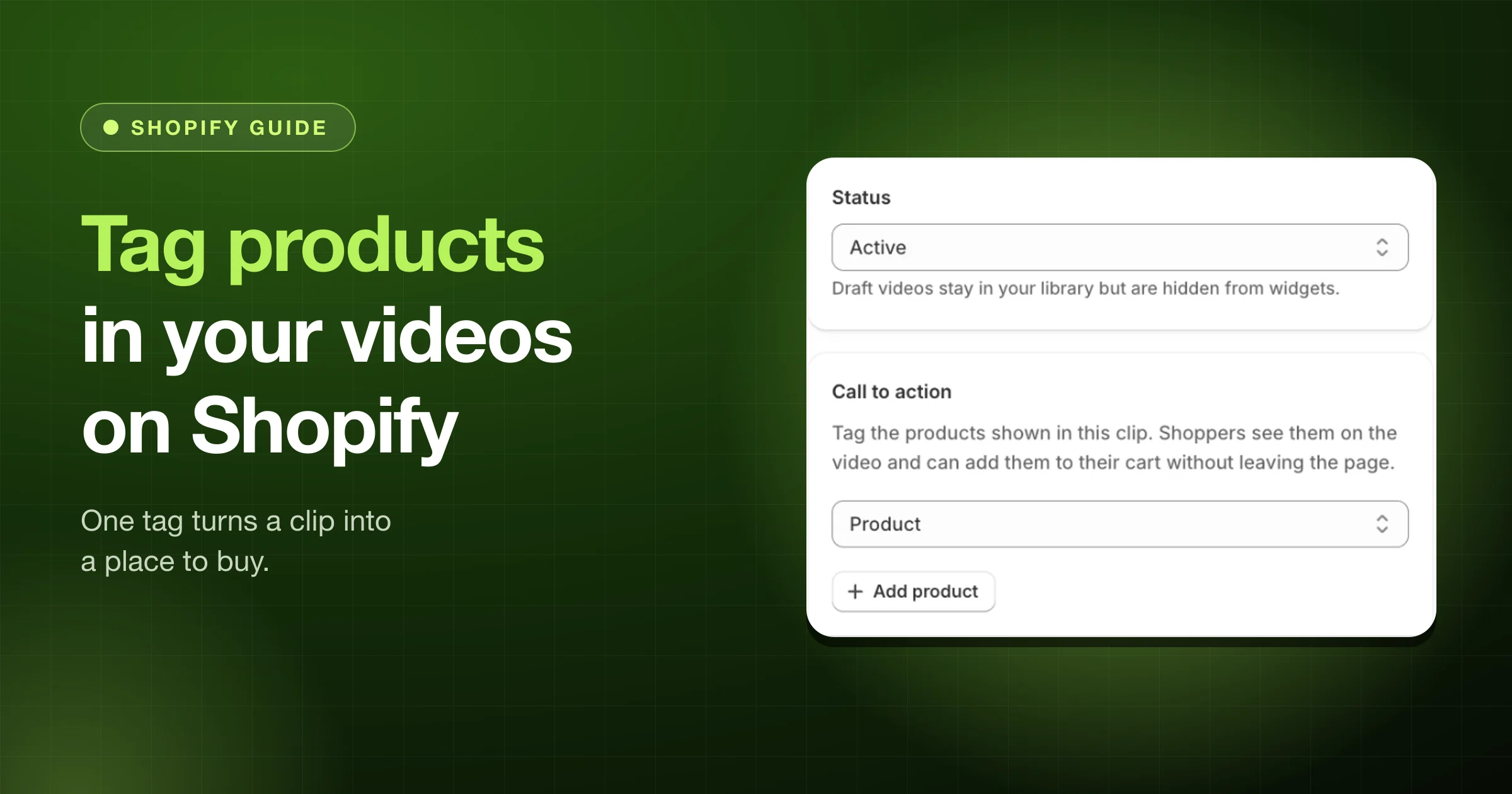
To tag a product in a video on Shopify with Foxr Shoppable Videos & UGC, open the clip in Video library, set "Call to action" to "Product", click "Add product", pick the product, and click Save. Shoppers then see a product card at the bottom of the video with the product's photo, name, and price. They tap it to pick a size and add to cart without leaving the video.
It takes under a minute per clip. The tag shows on your store in a minute or two, in every widget that uses the clip.
Key takeaways
- The tag is what makes a video shoppable. No tag, no product card.
- One product per clip. If a video shows several items, tag the main one.
- Tag the product, not a variant. Shoppers pick the size and color in the panel.
- The product must be Active in Shopify and for sale on your Online Store.
- Changes show on their own. You don't need to re-save your widgets.
- You can find untagged clips with the "No product" filter.
Words used in this guide
Tagging connects a clip to a product. Here is what you will see on screen.
| Term | What it means |
|---|---|
| Clip | One video or image in your library. The app also says "video" or "media". |
| Tagged product | The product a clip shows. Shoppers can buy it from the clip. |
| Status | Active clips show in widgets. Draft clips stay in your library but are hidden. |
| Call to action | The card on a clip's page where you set the product. |
| Product card | The photo, name, price, and + button shown over the bottom of the video. |
| Quick add panel | The panel that slides up so shoppers pick a size and add to cart. |
What the tag does
Once a clip has a tagged product:
- In the player (every layout), a card shows over the bottom of the video: the product's image, title, price, and a + button.
- On Carousel and Grid cards, a small product chip can show under or over the card.
- On a Product page strip, the tag decides which clips show on which product's page.
- In Analytics, sales from that product are credited to the clip and the widget.
The price on the card is the lowest price across the product's variants, shown in the shopper's currency. When a shopper picks a variant in the panel, the price changes to that variant's.
Step by step
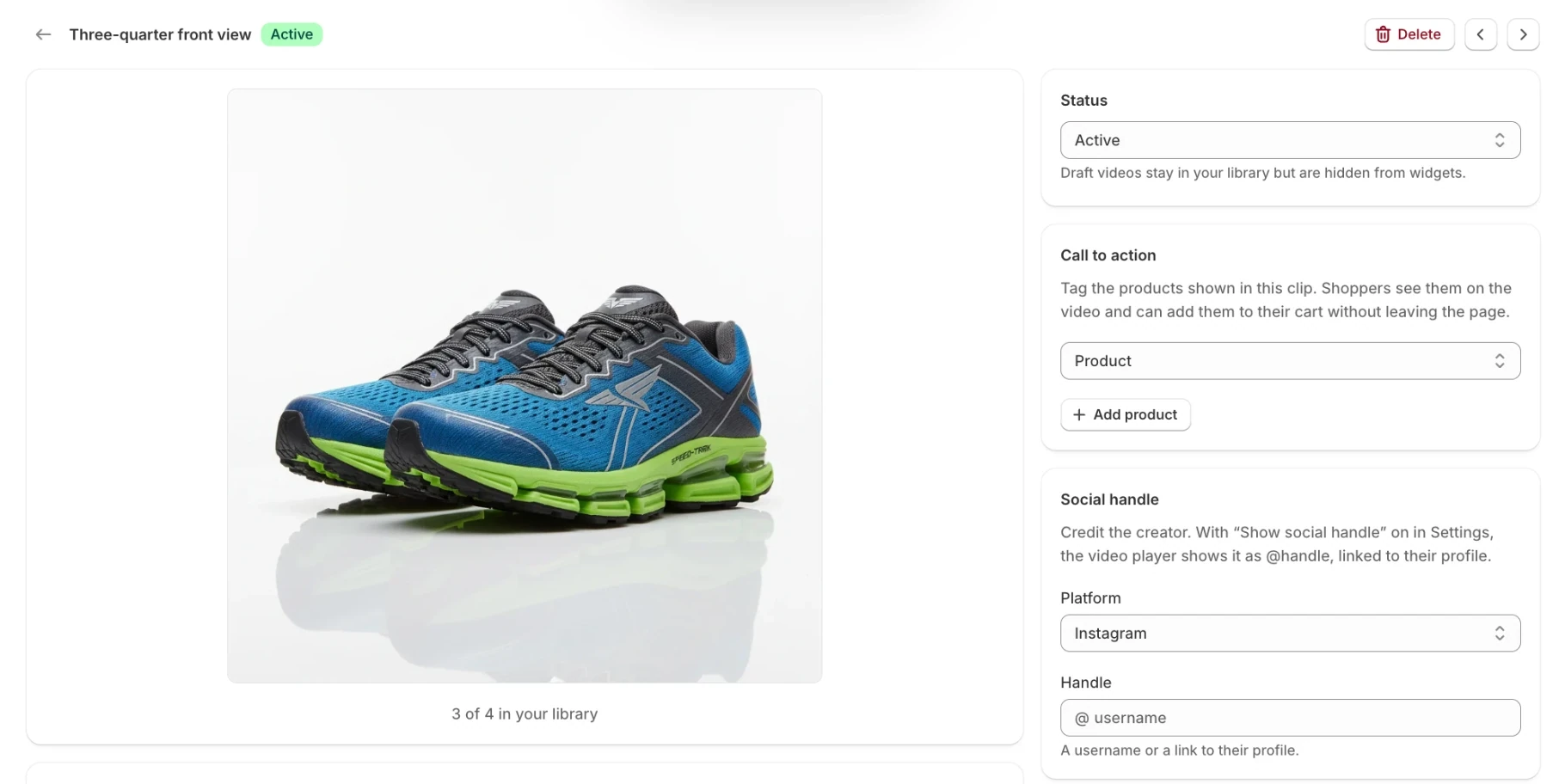
- In the app, open Video library and click the clip.
- In the Call to action card on the right, set the menu to Product.
- Click Add product. Shopify's product picker opens.
- Pick the product the clip shows and confirm. It appears with its image and title.
- Click Save in the save bar.
That's it. It shows on your store within a minute or two.
Change or remove a tag
- Change it: click the ✕ next to the product, click Add product, pick the new one, and save.
- Remove it: click the ✕, then Save.
Rules to know
| Rule | What it means |
|---|---|
| One product per clip | Each clip shows the first product tagged. |
| Active only | Draft and archived products show a status badge on the clip page and never show to shoppers. |
| Sold-out products still show | Unless you turn on Hide out of stock products and variants in Settings → Products. |
| Sold for online | A product that is Active but not sold on your Online Store, or in the shopper's market, may still show a card. But the quick add panel can't load it and the shopper goes to the product page, where they may see "page not found". Tag products that are for sale online. |
A warning about the other link types
The Call to action menu also has None, Collection, and Custom link. Be careful:
- Collection and Custom link are saved, but they are not shown to shoppers.
- If you switch a clip to None, Collection, or Custom link and save, its tagged product is removed, along with its product card.
To keep a clip shoppable, leave it on Product.
What shoppers do with the tag
- They tap the product card. By default a quick add panel slides up over the video. (In Settings → Products, you can set Buy button action to send them to the product page instead.)
- The panel shows the product image, title, and the price of the picked variant. If there's more than one variant, a menu lists them, with the first available one picked for them. They set a quantity from 1 to 99.
- They tap Add to cart.
- By default they land on your cart page. Set Add to cart action to Quick add to show a short message and keep the video playing.
Buy button colors. The Add to cart button takes its colors from Settings → Appearance (Button background and Button text). The widget's Colors tab doesn't change it.
The round + button works a little differently. If the product has one variant in stock, it adds it straight away and turns into a green tick. Otherwise it opens the panel.
Cart drawers: adding from a video doesn't open your theme's cart drawer or refresh the header cart count. If your store relies on a drawer, "Go to cart" gives the clearest confirmation.
Show star ratings on the card (optional)
Turn on Show review score from products in Settings → Products. Product chips, player cards, and the quick add panel then show the rating and review count, like ★ 4.6 (128). It works with any reviews app that writes Shopify's standard product rating metafields. Products with no rating show no stars. It's off by default.
How to pick which product to tag
- Tag what the viewer would ask about. In an outfit clip, tag the item the clip is about. Make a second clip for the next item.
- Match the clip's job. A "how to use" clip is tagged to the product being used.
- Use your best sellers first. Start with 5 clips on the products with the most traffic.
- Check the product page. A shopper who taps "View full details" lands there. Make sure it matches what they saw.
On the Video library page, each clip card shows a small number at the bottom left. It's how many products are tagged. 0 means the clip isn't shoppable yet. Cards don't show clip names, so use the search box (it matches names only).
Find clips with no tag
- In Video library, set the product filter to No product.
- Open a clip and tag it.
- Click Save, then go back to the library and set the filter again. The arrows on a video page don't follow the filter.
You can also ask Sidekick (Shopify's assistant) to list clips with no tag. It can open a clip for you, but you pick the product yourself.
How a tag changes where clips show
- Product page layout: the widget only shows clips tagged with the product on the page. See Reels on product pages.
- Carousel and Grid: the chip shows each clip's product. See video carousel setup.
- Stories and Pop up: no chip. Shoppers see the product once they open a clip.
Fixes
| Problem | What to check |
|---|---|
| Clip shows no product card | Is a product tagged? Is it Active? Is it on your Online Store? |
| The card shows but "Add" sends me to the product page | The product may not be sold in that market. Or the add failed. |
| A sold-out item shows | Turn on Hide out of stock products and variants |
| Product name is wrong on structured data | Open the widget and click Save, or save the clip again, after renaming a product |
| Product Page widget shows nothing for a product | Tag a clip with it. If Show every clip when none match is off, save the widget after tagging the first clip. |
| Price differs between card and panel | The card shows the lowest variant price. The panel shows the picked variant's. |
What tagging can't do
- No multi-product hotspots. One product per clip. "Product display" (slideshow or list) is greyed out for this reason.
- No compare-at prices, subscriptions, or selling plans in the panel.
- No extra product details like engraving text or file uploads. Shoppers go to the product page via View full details.
- No Buy now button in the player. Shoppers add to cart, then check out.
- No tag for a specific variant. The first available one is picked for the shopper, who can change it.
- New app. Launched September 25, 2026. On November 12, 2026, it had 5.0 stars from 7 reviews.
FAQ
Can I tag more than one product in a video?
Not in Foxr Shoppable Videos & UGC. Each clip shows one product. For a look with 3 items, make 3 clips, or tag the main item.
Is this the same as tagging products on Instagram or YouTube?
No. Those tags live on the social platform. This tag lives in your Shopify store and shows a product card in your own video player. A clip you imported from social media keeps no tag from there.
Do I have to re-save my widgets after tagging?
No. Tag and status changes reach your store within a minute or two. The exception is a Product page widget with "Show every clip when none match" turned off: save it after you tag the first clip for a product.
Can I tag a collection?
You can save a collection or custom link on a clip, but shoppers don't see them yet.
Why doesn't my product show?
It's most often that the product is not Active, or isn't sold on your Online Store. See the fixes table.
How do I tag in bulk?
There's no bulk tag. You tag clip by clip, and the "No product" filter helps you see what's left.
Does the tag help sales tracking?
Yes. Sales of the tagged product are credited to the clip and widget in Analytics. See how to measure shoppable video ROI.
Next step: tag your next 5 clips
Open Video library, set the filter to No product, and tag five clips. Then check one on your phone.
Foxr Shoppable Videos & UGC is free on the Shopify App Store.
Facts checked against the app's documentation and listing on November 12, 2026.