
Shopify Video Carousel: How to Add One to Your Homepage
By Foxr Team · Foxr · · 11 min read
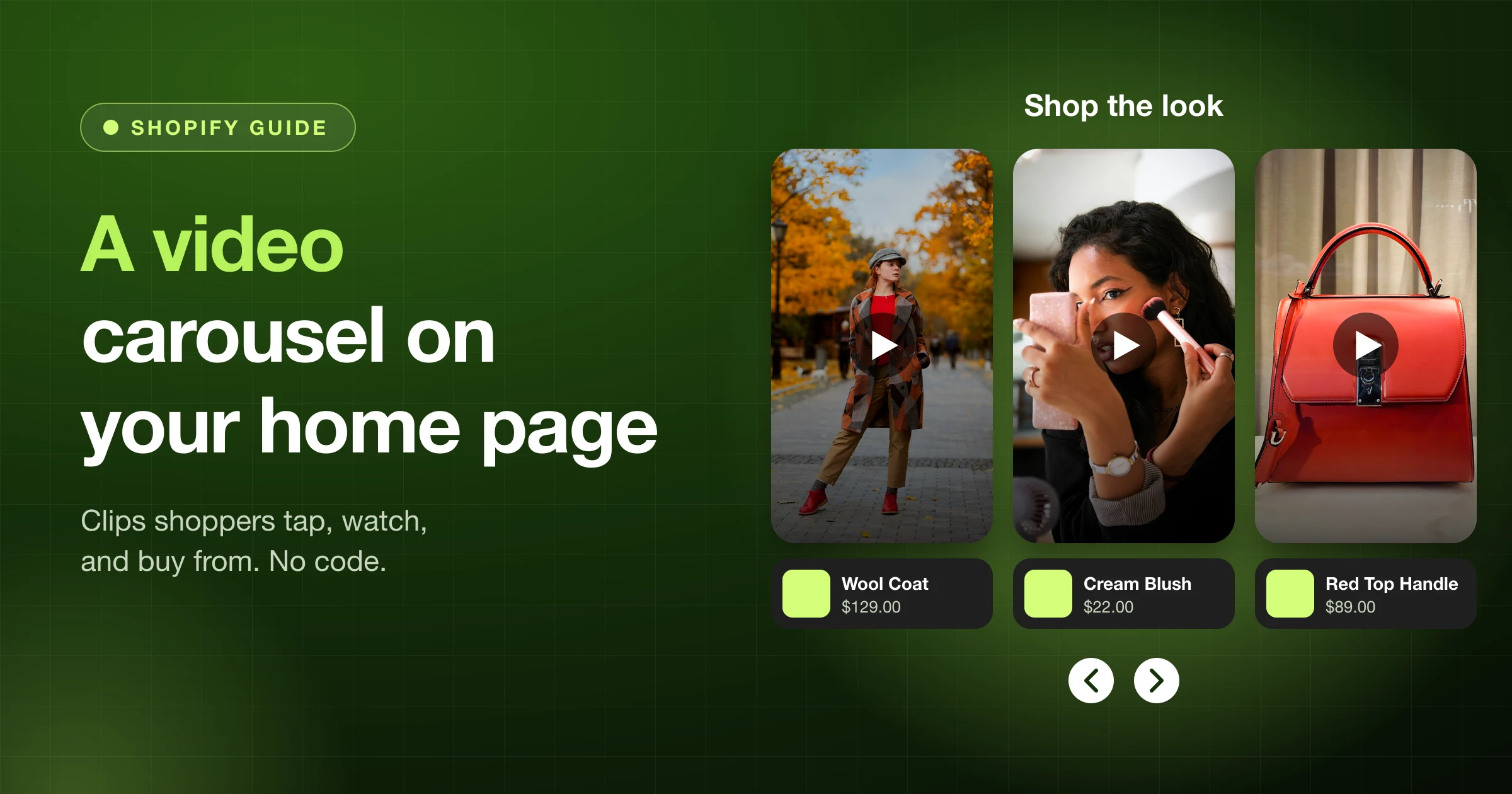
To add a video carousel to your Shopify home page, create a widget in Foxr Shoppable Videos & UGC, set its Layout to "Carousel", choose your clips, and add the widget to your home page with the "Add to theme" button. There is no code to paste. The whole job takes about 15 minutes once your clips are ready.
Each card is a tall video, like a Reel. A shopper taps a card, the video opens full screen, and a product card at the bottom lets them add to cart.
Key takeaways
- The Carousel layout is a row of 9:16 video cards with arrows. Cards are 250 px wide by default.
- A widget holds up to 24 clips. Most home pages do well with 6 to 10.
- Tag a product on each clip. The carousel can then show a small product chip under every card.
- Everything is set in the app. The theme block only asks which widget to show.
- Check it on your phone. The editor preview only shows desktop.
Words used in this guide
The app works in three pieces. Clips go in a library, a widget arranges them, and a block in your theme shows the widget.
| Term | What it means |
|---|---|
| Clip | One video or image in your library. The app also says "video" or "media". |
| Widget | One arrangement of your clips on the store, with its own layout and design. Example: a row of story circles. |
| Layout | How a widget arranges its clips: Stories, Carousel, Grid, Pop up, or Product page. |
| Placement | The kinds of pages a widget is allowed to show on. It never moves the block for you. |
| UGC widget block | The block you add in Shopify's theme editor to show one widget. |
| App embed | FOXR - Shoppable Video, the on/off switch in your theme. Widgets stay hidden until it's on. |
| Player | The viewer that opens when a shopper taps a clip, with the tagged product at the bottom. |
Other ways to add video to a home page
- Your theme's own sections. Some themes include a video or slideshow section. In the theme editor, click Add section and see what's listed. What it can do depends on your theme.
- A Custom Liquid or embed block. You paste code from a video host. It's one video at a time, and it needs care on phones.
- A video slider widget (this guide). A row of clips shoppers can tap, with a product card and add to cart.
Pick the widget when you have several clips and want them to sell. A plain video section is fine for one brand film.
What it looks like on a real store
Spell by Smokeshow, a clothing brand in India, runs a carousel on its home page. Each card is a short vertical clip. A dark product chip under the card shows the product's name and price in rupees.
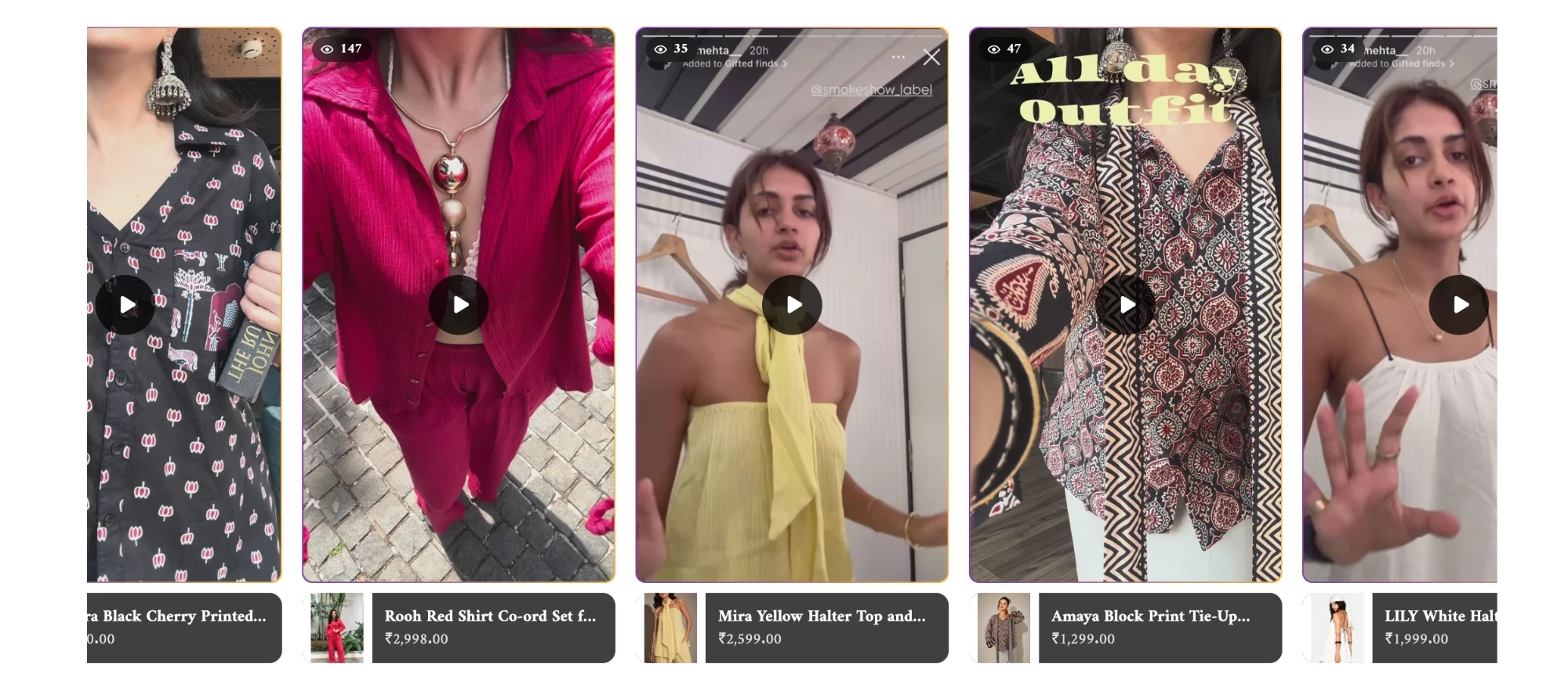
Spell by Smokeshow also left one of the 7 reviews on the app's listing, dated September 29, 2026. It said the app was easy to use and support was quick.
Before you start
- Clips. MP4 or MOV, up to 250 MB each. Vertical 9:16 works best for this layout.
- Tags. Plan which product each clip shows.
- Permission for any clip that isn't yours. See our permission guide.
- Foxr Shoppable Videos & UGC, installed from the Shopify App Store.
Need ideas on what to film? See 12 shoppable video ideas. Want to bring in clips from social? See how to add TikTok videos.
Step 1: Add your clips to the library
- Open Video library → Add media.
- Use Upload to add files from your computer (up to 8 at a time), or Shopify Files if they're already there. Instagram and TikTok imports are on their own tabs.
- On Shopify Files, tick the clips and click Add to library.
Step 2: Tag a product on each clip
- Open a clip. Under Call to action, choose Product.
- Click Add product, pick it, and click Save.
Skip this and the clip still plays, but there's no product card and no chip. See how to tag products.
Step 3: Create the widget
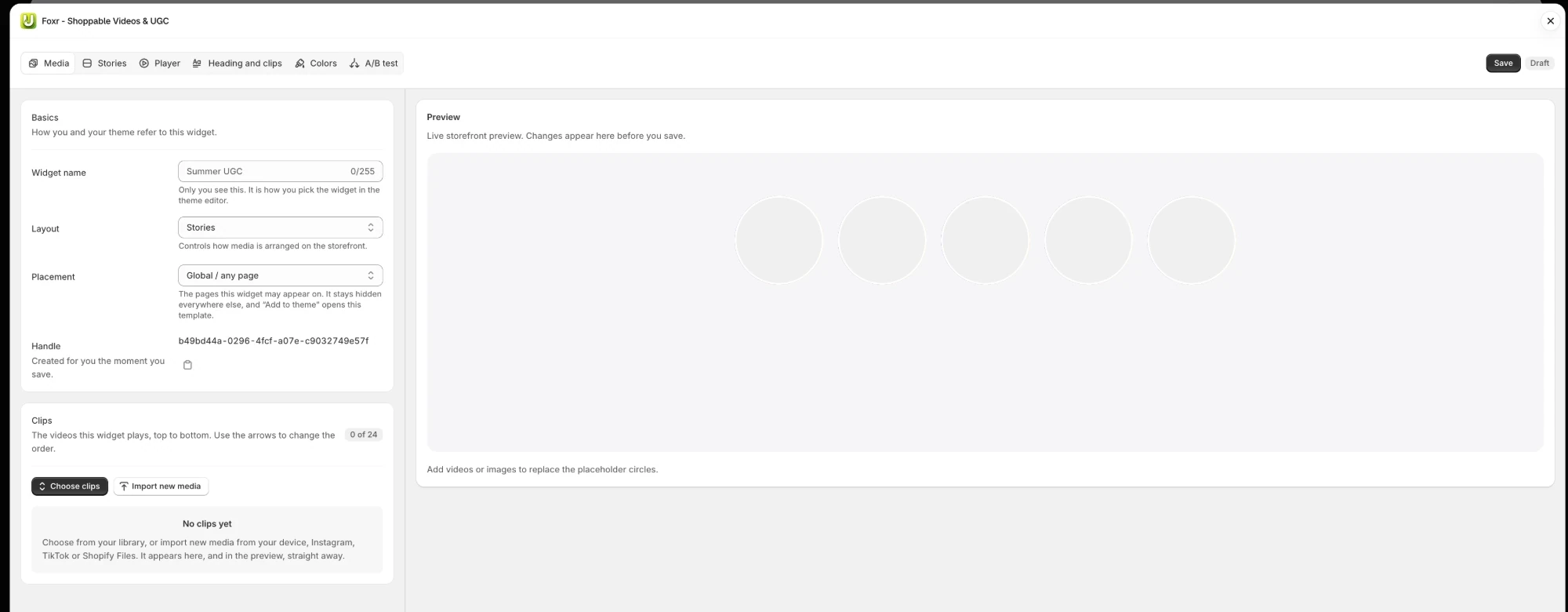
- Click Widgets → Add widget.
- Widget name: something only you see, like "Home carousel".
- Layout: choose Carousel. The preview changes at once.
- Placement: choose Home page. This is a safety net. It stops the widget from showing up if its block is ever put on the wrong page. (Global / any page also works.)
- Click Choose clips, pick your clips, and click Done. Use the arrows in the Clips card to set the order.
- Click Save.
You'll see Widget saved, and the badge changes from Draft to Active. Add to theme and Embed code only appear in the top bar after the first save. You can't save without a name or at least one clip. Active only means the widget has clips. It doesn't mean shoppers can see it yet.
Step 4: Set the Carousel options
Open the Carousel tab. These are the settings most stores change:
| Setting | Default | Why change it |
|---|---|---|
| Card width | 250 px | Make cards bigger on a sparse page, smaller to show more. Range: 70 to 360 px. |
| Size on mobile | 0 (same as desktop) | Set a smaller card for phones. |
| Product card | Under the clip | Move the chip over the clip, or hide it. |
| Arrow position | Under the row | Put arrows over the clips, or use swipe only. |
| Advance every | 0 (off) | Set seconds (say 4) for auto-scroll. |
| Start over at the end | On | Loop back to the first card. |
| Preview videos | Off | Play silent previews on the cards. |
| Corners | Very rounded | Match your theme. |
A few notes:
- Cards are never wider than 85% of the screen on phones, so the next card peeks in.
- Arrows hide themselves when all cards fit.
- Don't pick swipe only if many shoppers use a desktop mouse. They have no easy way to scroll.
- Plain arrows are white by default. On a light page, pick a darker arrow color.
- Auto-scroll pauses while a finger or pointer is on the carousel.
The preview is a sketch
The live preview helps, but it is not your store:
- It shows desktop sizes only. Phone sizes aren't previewed.
- Thumbnails are still images. Preview videos, the player, and the add-to-cart button aren't shown.
- The product chip is a sample ("Tagged product · $29.00") drawn on the first card.
- Captions show the clip's library name. Your store shows the file's alt text.
- Clips set to Draft still show in the preview. Shoppers don't see them.
Save, then check your real home page on your phone.
Step 5: Add a heading
Open Heading and clips. Type a short line in Heading text, like "Shop the look" or "Real people, real finds" (up to 120 characters). Pick center or left alignment. Save.
Step 6: Choose what happens on tap
Open the Player tab. Open in has three options for a carousel:
- Fullscreen story viewer (default). Shoppers swipe up and down between clips.
- Floating mini player. A small player in a corner while shoppers keep browsing.
- Play inside the card. The video plays in its card, with sound, and loops. Shoppers never leave their spot on the page. Images and product chips still open the full player. These plays are not counted as plays in Analytics, so the play rate will read low.
For most stores, the default is the best start.
Buy button colors. The Add to cart button in the quick add panel takes its colors from Settings → Appearance (Button background and Button text). The widget's Colors tab only changes the play badge on thumbnails.
Step 7: Show it on your home page
- Open the theme editor, click the App embeds icon, switch on FOXR - Shoppable Video, and save. Widgets stay hidden until you do.
- In the app, open your saved widget and click Add to theme. With Placement set to Home page, it opens your home page with a new UGC widget block.
- Under Widget, click Select and choose your widget.
- Drag the section where you want it. Many stores place it below the hero banner and above the best sellers. Test your own.
- Click Save.
Then go to Home in the app and click Recheck in step 3 of the Setup guide. The badge tells you where you are:
| Badge | What it means | What to do |
|---|---|---|
| Live | The block is visible, a widget is picked, and the app embed is on. | Check your store. A widget can still hide itself for a placement mismatch or too few clips. |
| App embed off | The block is ready, but the embed is off. | Click Turn on app embed, check FOXR - Shoppable Video is on, and Save in the theme editor. |
| No widget selected | The block is in your theme with nothing picked. | Open the theme editor, click the block, and pick a widget under Widget. |
| Turned off | The block is hidden in the theme editor. | Show the block again. Don't click Add to theme, because that adds a second block. |
| Not added | There's no UGC widget block in your live theme. | Click Add to theme or Add to home page. |
Home checks your published theme. A block you add to a draft theme isn't found until that theme is published.
To take it off a page: click the block in the theme editor, remove or hide it, and Save. There is no on/off switch for a widget. The widget itself stays in the app.
Step 8: Test on a phone
- Does the row scroll smoothly, and does the next card peek in?
- Does a tap open the player, with sound if you want it?
- Does the product card show the right item and price?
- Can you pick a size and add to cart?
- Does the widget hide if you set a minimum and have fewer clips?
How many clips should a carousel have?
- Under 4: it looks thin. You can set Show only with at least under Heading and clips so a small widget hides.
- 6 to 10: a good start for most home pages.
- Up to 24: the limit. Long rows get skipped.
Also remember the shop-wide minimum in Settings → Feeds (default 1). The higher of the two minimums applies. Draft clips don't count.
What can go wrong
- Widget doesn't show. Check the app embed is on, a widget is picked in the block, and the placement allows the page.
- Clips are cropped oddly. The shape is cropped to fill. Set Clip shape to match how you filmed (9:16, square, or 16:9).
- A clip shows no product. Its product might be Draft or archived in Shopify, or the clip isn't tagged.
- Caption missing. Captions come from the file's alt text in Shopify Files, and they need Show captions on. Save the widget after changing alt text.
- Header cart count doesn't change after an add. Adds from a video go to the cart page by default and don't refresh a drawer or the header count.
Limits
- One product per clip.
- No creator credit from imports. The app doesn't keep a creator's name or post link. Credit them in the file's alt text, and turn on "Show captions".
- Carousel is a home page tool, not a feed. It shows the clips you picked, in the order you set (or shuffled on each visit).
- New app. Launched September 25, 2026, with 5.0 stars from 7 reviews on November 12, 2026.
FAQ
Do I need to edit theme code?
No, on Online Store 2.0 themes. You add a block in the theme editor. Older themes use an embed snippet.
Can I use videos that aren't vertical?
Yes. Set Clip shape to Square or Horizontal. Clips are cropped to fill the shape. The full player is always a tall 9:16 frame unless you turn off "Crop to fit vertical aspect ratio" in Settings → Fullscreen player.
Can I auto-scroll the carousel?
Yes. Set Advance every on the Carousel tab to a number of seconds. It's off by default.
Can the same carousel be on more than one page?
Yes. Add its block on each page. A widget with Global / any page placement can show wherever its block is.
How do I know if it's working?
Open Analytics in the app. See how to measure shoppable video ROI for how to read it.
Will it slow my home page?
The widget's own files are small and posters load as shoppers scroll to them. See the speed guide.
Next step: build your first carousel
Pick 6 clips. Tag each with a product. Build the widget, add it under your hero banner, and look at it on your phone.
Foxr Shoppable Videos & UGC is free on the Shopify App Store.
Facts checked against the app's documentation and listing on November 12, 2026.