
How to Embed Instagram Reels on Shopify (With Add to Cart)
By Foxr Team · Foxr · · 9 min read
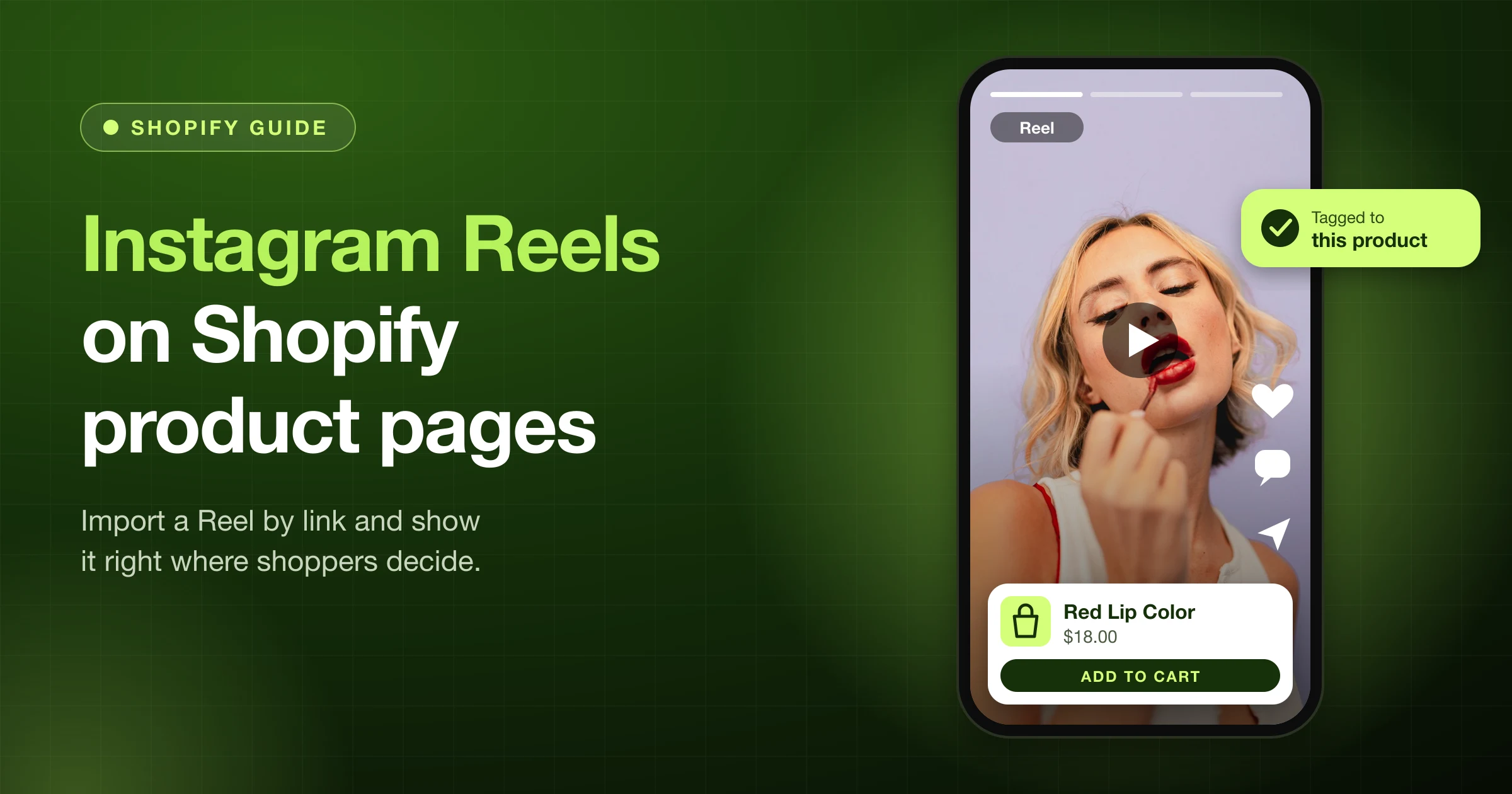
To show an Instagram Reel on a Shopify product page, import it into Foxr Shoppable Videos & UGC by link, tag the product, and add a "Product page" widget to your product template. Each product page then shows only the Reels tagged with that product, and shoppers can add it to cart from the video.
The app imports a copy of the Reel into your Shopify Files. It is not Instagram's own embed, and it is not a live feed. That has pros and cons, and we list them below.
Key takeaways
- Works with public Reels and video posts. Links like
instagram.com/reel/…,/p/…, and/tv/…. - Up to 5 links per import. For a carousel post, the first video is imported.
- One widget can serve every product page. It holds up to 24 clips, and each page shows the ones tagged with its product.
- 3 clips show at a time by default. The next one peeks in so shoppers know to swipe.
- Product pages only. The Product page layout hides itself everywhere else.
- Get permission first. See how to get permission to use customer videos.
Words used in this guide
You will use three things: a clip (the imported Reel), a tag (which product it shows), and a Product page widget placed in your product template.
| Term | What it means |
|---|---|
| Clip | One video or image in your library. The app also says "video" or "media". |
| Tagged product | The product a clip shows. Shoppers can buy it from the clip. |
| Placement | The kinds of pages a widget is allowed to show on. It never moves the block for you. |
| UGC widget block | The block you add in Shopify's theme editor to show one widget. |
| App embed | FOXR - Shoppable Video, the on/off switch in your theme. Widgets stay hidden until it's on. |
| Product page layout | A strip of clips on a product page. It shows the clips tagged with the product being viewed. |
What you get (and don't get)
You get:
- Reels playing from your own Shopify Files, so a deleted Instagram post doesn't break your page.
- A product card on each video, with a quick way to pick a size and add to cart.
- The right Reels on the right page, because the tag decides where a clip shows.
You don't get:
- A live feed. New Reels don't appear by themselves. You import the ones you choose.
- The creator's @username or a link to the post. The app doesn't keep them.
- Instagram's own player, likes, or comments.
If you want a full feed, read our guide to shoppable Instagram feeds. It explains the three ways to do it and where this one fits.
Instagram's own embed vs importing a Reel
Instagram has its own way to show a post on a website. Per Instagram's Help Center, public posts and Reels can be embedded. You can't copy the embed code from the app. Use a computer or a mobile browser. The embed shows the video right on your page, with the creator's username and a link to Instagram. Private accounts can't be embedded, and account owners can turn embeds off.
| Instagram's embed | Import with Foxr Shoppable Videos & UGC | |
|---|---|---|
| Where it plays | Instagram's player, on your page | A copy from your Shopify Files |
| Creator name and link | Shown | Not kept |
| Product card and add to cart | No | Yes, after you tag a product |
| Right clips on the right product page | You paste code on each page | The tag decides, in one widget |
| If the post is deleted | The embed stops working | Your copy keeps playing |
| Rights | A platform feature the owner can switch off | A copy of the file, so get permission first |
If you care most about credit and a link back, Instagram's embed does that better. If you care most about selling from the video, the import does.
Step 1: Import the Reels
- In the app, open Video library → Add media.
- Click the Instagram tab under Import from.
- Tick the box that says you have the permissions and rights. The link box stays locked until you do.
- Paste up to 5 Reel links.
- Click Find media. You'll see a card for each video. Untick any you don't want.
- Click Add to library under the cards, and keep the page open until each card shows Added.
Where to get the link: on Instagram, open the Reel and copy its link from the Share menu.
What won't import: private accounts, profile links, Stories, and posts with only photos. If Instagram is limiting requests, the app says so. Try again in 10 to 15 minutes.
Rights: these must be your Reels, or Reels from creators and customers who said yes. If you're not sure how to ask, our permission guide has a short message you can copy.
Step 2: Tag each Reel with its product
The page strip depends on this step. A Reel with no tag won't show on any product's page (unless you turn on a fallback, see below).
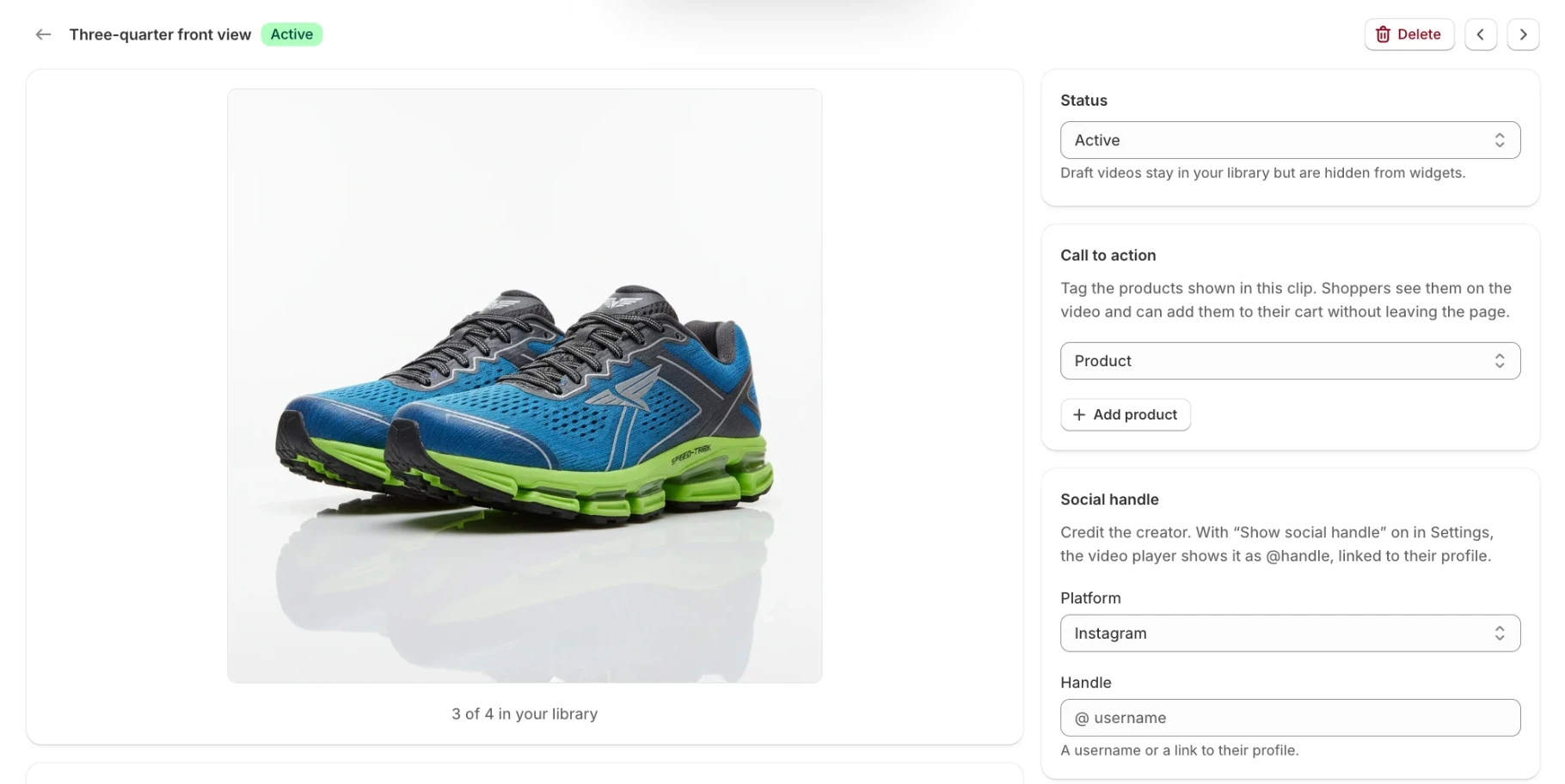
- Open the clip in Video library.
- Set Call to action to Product.
- Click Add product, pick the product, and click Save.
Rules that matter here:
- One product per clip. Only the first one counts.
- Active products only. Draft or archived products never show.
- Tag the product, not the variant. Shoppers pick the size or color in a panel.
Step 3: Make a "Product page" widget
- Go to Widgets → Add widget.
- Set Layout to Product page. Placement switches to Product pages and locks.
- Click Choose clips and add the tagged Reels for the products you want covered (up to 24).
- Open the Product page tab and check What the strip shows.
- Click Save.
How the strip picks clips
On each product page, the strip does this:
- It starts with the clips in this widget (not your whole library). Draft clips are left out.
- It keeps the ones tagged with the product on the page.
- If none match, it either shows every clip in the widget or hides the strip. You choose.
- If there are fewer clips than your minimum, it hides.
Strip settings
| Setting | What it does | Default |
|---|---|---|
| Clips on screen | Most clips shown at once, 1 to 6 | 3 |
| Which clips | Only clips tagged with this product, or every clip in the widget | Only tagged |
| Show every clip when none match | For products with no tagged clip: show all, or hide the strip | On |
| Strip width | Width of each clip | 220 px |
Plan your numbers. One widget holds 24 clips. At 3 Reels per product, that covers 8 products. Need more? Make a second Product page widget.
The preview is not your store. For this layout, the editor preview shows every clip you picked, not just the ones matching a product, beside a grayed-out product column. Save, then check a real product page.
Step 4: Add it to the product template
- Turn on the app embed first: in the theme editor, click App embeds and switch on FOXR - Shoppable Video. For this layout it is required, because it tells the widget which product the page is for.
- In the app, open your widget and click Add to theme. The theme editor opens on your default product template with a new UGC widget block.
- Pick your widget in the block.
- Drag it into place. Near the description or under the buy buttons works well. Click Save.
If some products use a different template, open that template in the theme editor and add the block there too.
Step 5: Check it like a shopper
- Open a product page that has a tagged Reel. Do the right clips show?
- Open one with no tagged Reel. Do you see every clip, or no strip? Is that what you wanted?
- Tap a clip on your phone. Does the product card show the right item?
- Add to cart from the video. Does the cart page show the right item?
- Try a sold-out product. By default it still shows its card, with "Sold out" in place of the + button. Turn on Hide out of stock products and variants in Settings → Products to hide those cards.
Reading the strip: the middle clip plays a silent preview by default. There are no arrows. Shoppers swipe or scroll.
Tips for Reels on product pages
- Match the doubt. The best Reel for a product page answers one thing: fit, size, how it feels, how to use it. See shoppable video ideas for 12 formats.
- Use 3 per product to start. More isn't better if they all say the same thing.
- Turn on captions if you want them. In the widget's Player tab, switch on Show captions. The caption is the file's alt text in Shopify Files, not the clip's Caption field. A new Product page widget saves with captions off, even though the preview shows them.
- Add subtitles for sound-off viewers. Upload a
.srtor.vttfile on the clip page. - Rotate them. Swap in fresh Reels each month. You can set a clip to Draft to pull it without deleting it.
Limits to know
- Product pages only. Anywhere else the strip stays hidden, even if its block is there.
- Not a feed. No auto-sync, no creator name, no link to the post.
- Reels can have music you don't own. Ask the creator about the sound too.
- Adding to cart from a video doesn't open your cart drawer. By default shoppers land on your cart page. In Settings → Products, "Add to cart action" can be set to "Quick add" instead, which shows a short message and keeps the video playing. The header cart count updates on the next page.
- Not supported in the quick add panel: compare-at prices, subscriptions, and products that ask for extra details like engraving text.
- New app. Launched September 25, 2026. On November 12, 2026, its listing showed 5.0 stars from 7 reviews.
FAQ
Is this Instagram's official Reels embed?
No. The app downloads a public Reel by its link and saves a copy in your Shopify Files. Then it plays that copy in a widget on your store.
Can I show the same Reel on several product pages?
Each clip has one tagged product, so the strip shows it only on that product's page. To use the same Reel somewhere else, add it to a Carousel or Grid widget as well. Those can show any clips, and one clip can sit in many widgets.
What if a product has no Reel?
You choose. With "Show every clip when none match" on, the page shows all the widget's clips. With it off, the strip hides.
Can shoppers add to cart without leaving the page?
Yes. They tap the product card, pick options in the panel, and tap Add to cart.
Does it work with my theme?
On Online Store 2.0 themes, yes, through a theme block. Older themes use an embed snippet. The Product page layout still needs the app embed on.
Will it slow down my product page?
The widget's own files are small, and videos load when opened. See our speed guide.
Next step: tag your first 3 Reels
Pick your best seller. Import 3 Reels that show it, tag each one, and add a Product page widget. Check it on your phone.
Foxr Shoppable Videos & UGC is free on the Shopify App Store.
Facts checked against the app's documentation and listing on November 12, 2026.