
How to Get Permission to Use Customer Videos (UGC Template)
By Foxr Team · Foxr · · 10 min read
Ask the customer in writing, say exactly where and how you will use their video, and keep their yes on file before you put the clip on your store. A like, a tag, or a hashtag is not a yes. Your store sells things, so a video there is a commercial use. Get a clear yes.
This guide gives you a short message to copy, a simple log, the FTC's disclosure rules, and a plan for taking a clip down. It's about good practice. It isn't legal advice. If your store is large, or a clip is risky, talk to a lawyer.
Key takeaways
- Ask first. Ask in writing. DMs and emails count as a record.
- Say what you'll do. Where it will show, for how long, and whether you'll edit it.
- Keep a log outside the app. Foxr Shoppable Videos & UGC doesn't keep the creator's name or the post link.
- Disclose gifts and payments. If you gave a creator free product, money, or a discount, the FTC says to disclose it clearly, in the video itself.
- Never fake a review. The FTC bans fake reviews, including AI-generated ones.
- Have a takedown plan. The app keeps a copy in your Shopify Files, so removing a clip takes two steps.
Words used in this guide
A few app words you will need when you add, hide, or remove a customer clip.
| Term | What it means |
|---|---|
| Clip | One video or image in your library. The app also says "video" or "media". |
| Video library | The page in the app (its title is Media) that holds every clip a widget can use. Widgets only use clips from here. |
| Status | Active clips show in widgets. Draft clips stay in your library but are hidden. |
| Shopify Files | Where the video files live. Every clip in your library is a file here. |
| Source | Where a clip came from: Shopify Files, Instagram, or TikTok. |
| Alt text | A short text on the file in Shopify. The app shows it as a caption when captions are on. |
Why you need permission
When a customer posts a video, they made it. A video is their work. Showing it on your store to sell a product is a use you should get a yes for.
The app helps you remember this. Before it lets you paste an Instagram or TikTok link, it makes you tick a box that says: "I confirm that I have obtained the necessary permissions, copyrights, and authorizations." The link box stays locked until you do. The app says to import only content you have permission to use: your own posts, or creators' and customers' posts you've licensed.
Permission also protects trust. A shopper who finds their face on your site without asking will not become a repeat customer.
What counts as a yes
| Counts | Doesn't count |
|---|---|
| A written reply: "Yes, you can use it on your store" | A like, a heart, or a comment |
| A form or email where they agree to named uses | A tag or @mention of your brand |
| A signed release (for creators you pay) | A hashtag like #brandname |
| A DM thread that clearly says yes | Silence |
If a person other than the creator is clearly in the video, like a child or a friend, ask yourself if they've agreed too. Be extra careful with children. When in doubt, don't use the clip.
Say how you'll use it
A yes for one use is not a yes for all uses. Ask for each one on its own line:
| Use | Ask about it? |
|---|---|
| Your store (home page, product pages) | Yes. This is what the app does. |
| Your social posts | Yes, separately |
| Paid ads | Yes, separately. Ads are a bigger step. |
| Email and print | Yes, separately |
Also settle three more things in the same message:
- How long. Until they ask you to remove it, or a set time.
- Edits. Whether you may trim, crop, or add subtitles.
- Credit. With their handle, or no name.
Watch for other people's work inside the clip
- Music. A song may belong to someone else. See the note on music below.
- Logos and artwork that aren't yours or the creator's.
- Other people. Faces and names used to sell things can raise separate privacy and publicity rules in some places. If you sell to people in the EU or UK, privacy laws like the GDPR may also apply to videos of identifiable people. Ask a lawyer if you're unsure.
- "Fair use" is not a plan. It's something argued after a dispute. It is not a permission you can rely on in advance.
5 steps to get permission
1. Find the clip
Look at the tags and mentions on your brand's accounts, and at the videos customers send you. Pick clips that show the product clearly.
2. Send a short, clear ask
Be human. Say what you like about it. Then say what you want to do.
Message to copy (a template, not a real message):
Hi [Name], we loved your video of the [product]! Can we show it on our online store, on the [home page / product page], with a "buy" button under it? We'd keep it as you made it. We'd also credit you as @[handle] if you like. Reply "yes" and tell us if you'd like it credited or not. You can ask us to take it down anytime.
Change the details to fit. Fill in:
- Where: home page, product page, a "UGC wall".
- What: the video as is, or trimmed. Say if you'd crop it.
- How long: until they ask you to take it down, or a set time.
- Credit: with their handle, or no name.
If you plan to use it in ads, or anywhere beyond your store, ask for that too. Don't assume the store yes covers ads.
3. Get the answer in writing
Save the reply. A screenshot of the email or DM is enough for most small stores.
4. Log it
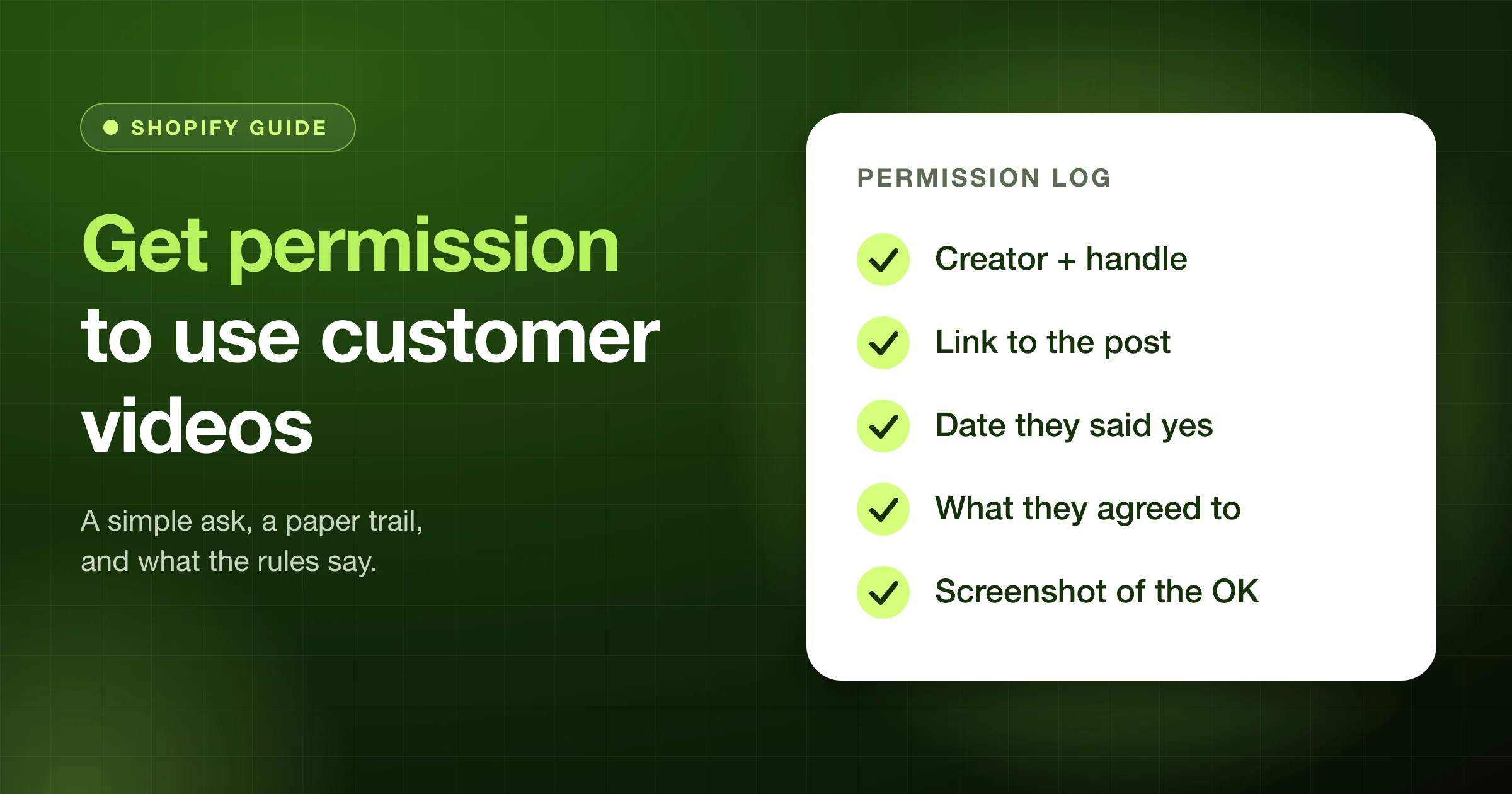
Keep one row per clip in a spreadsheet:
- Creator name and handle
- Link to the original post
- Date they said yes
- What they agreed to (where, how long, credit)
- A screenshot of their reply
- The clip's name in your Video library
Why outside the app? The app imports the video and its caption, but not the creator's username or a link to the post. Also, clip names, captions, and subtitles can be read publicly, so don't put private notes in them.
5. Say thanks
Tell them it's live. Many creators will share your store with their followers.
What if you gave them something?
The FTC's guide for social media creators says people should disclose any financial or other relationship with a brand. That includes free or discounted products and perks, not only cash. The disclosure should:
- Be easy to see and understand, placed with the endorsement and not hidden in a profile, at the end of a post, behind a "more" link, or among hashtags.
- Use plain words, like "ad", "sponsored", or a clear statement that the brand gave the product.
- Appear in the video itself, not only in the description.
So if you sent a gift, ask the creator to say or show it in the clip. If it's not in the clip, you can add on-screen text before you upload. (You'd need their ok to edit.)
The app's caption field won't do. The caption shoppers see in the player comes from the file's alt text, and it isn't a disclosure in the video itself. You can still use alt text to credit a creator. See below.
Don't pay for a positive review
The FTC's rule on fake reviews bans offering money or other incentives that depend on a review having a certain sentiment. Reward a customer for sending a video. Don't reward them only if it's glowing.
Never invent a customer
The same rule covers fake reviews and testimonials, including AI-generated ones from people who don't exist. Use real customers' real words.
Rules and guides change. Read the FTC's pages for the latest: FTC final rule on fake reviews and testimonials and Disclosures 101 for Social Media Influencers.
Give credit in the app
The clip page has a Social handle card (platform and @handle), and Settings → Fullscreen player has Show social handle. The app's docs, checked November 12, 2026, say this doesn't show on your store yet, and that imports don't keep the creator's username. The app may have changed since, so test it on your store before you rely on it.
What works today:
- Open the file in Content → Files in Shopify.
- Write the credit in the file's alt text, like "Video by @handle".
- In your widget's Player tab, switch on Show captions.
- Save the widget.
The player then shows the alt text as a caption above the product card. (Carousel and Grid cards can show it under the card.)
Using the app to import clips
Foxr Shoppable Videos & UGC can import public Instagram Reels and TikTok videos by link (up to 5 at once), or take files you upload. See how to add TikTok videos and Reels on product pages.
The tick box is a prompt, not proof. The app can't check that you really have permission. That's your job.
How to take a clip down
Say a customer asks you to remove a video. Do this fast:
- In Video library, open the clip and set Status to Draft. (To hide several, tick them and click Set draft.) It disappears from every widget within about a minute, and you can bring it back later.
- For good, click Delete on the clip page, or tick clips and use the bulk Delete. It can't be undone. The clip leaves every widget that used it, and its tagged product and subtitles are gone.
- Then go to Content → Files in Shopify and delete the file too. Do it in this order. If you delete the file first, the clip can no longer play, and any widget that uses it won't save (it says "Some files are still processing"). The app never deletes your files. If you leave it there, the video is still in your store's files, and (because the app recognizes imports by file name) importing the same post later can bring it back.
- Tell the creator it's done.
Also remove the clip from any other place you used it: emails, ads, social posts.
Why this matters: an imported copy keeps playing even if the original post is deleted. That's helpful for stability. It also means you're responsible for taking the copy down.
Be careful with music
A song in a clip may belong to someone else. Your creator may have the right to post it on a social app but not the right to let you use it in a sales context. We aren't aware of a simple rule that covers every case, so:
- Ask the creator if the clip has licensed music.
- Prefer clips with the creator's own voice.
- If in doubt, skip the clip.
A simple permission checklist
- A written yes is saved.
- The yes names where I will show the clip.
- I know whether I'll edit it, and the creator knows too.
- A gift or payment is disclosed in the video, if there was one.
- It's in my log, with the post link and a screenshot.
- I know how to take it down.
FAQ
Do I need permission if the customer tagged my brand?
Yes. A tag is a post about you. It isn't a license to reuse their video.
Can I just embed the post instead?
That's a different thing: it shows their post from the platform. The app doesn't embed. It imports a copy. Import only with permission.
Do I need a signed contract?
For a quick yes from a customer, a clear written reply works for many stores. For paid creators, use a written agreement. Ask a lawyer for what fits your case.
Do I have to credit the creator?
Not always. Ask them. Many like a credit. Use alt text, as above.
What if the creator is under 18?
Be extra careful. A parent or guardian should agree. If you're not sure, skip it.
What if someone deletes their post later?
The app's copy still plays on your store, so remove it yourself if they asked.
Next step: send your first ask
Pick one customer video you love. Send the short message above. Log the reply. Then import it and tag the product.
Foxr Shoppable Videos & UGC is free on the Shopify App Store. Want more on using customer content? See our UGC conversion guide.
FTC pages read and app facts checked November 12, 2026. This article is not legal advice.