
How to Add TikTok Videos to Shopify: 3 Free Ways (2026)
By Foxr Team · Foxr · · 10 min read
To add a TikTok video to Shopify with Foxr Shoppable Videos & UGC, paste the video's link in Video library → Add media → TikTok, click "Find media", then "Add to library". The app saves a copy in your Shopify Files. Then you tag a product on it and show it in a widget on your store.
It takes about 10 minutes. The app is free. You need the right to use the video, and you confirm that with a tick box before the app lets you paste a link.
Key takeaways
- Public TikTok videos only. Private or removed videos, and photo posts, don't work.
- Up to 5 links at a time. Short
vm.tiktok.comlinks work too. - You get a copy, not a live link. It sits in your Shopify Files and keeps playing even if the post is deleted.
- Tag one product per clip. Shoppers can then add it to cart without leaving the video.
- It doesn't sync your TikTok account. You import the videos you pick, one link at a time.
- Get permission first. Your own videos are fine. For anyone else's, ask. See our permission guide.
Words used in this guide
Foxr Shoppable Videos & UGC works in three pieces. Your clips live in a library. A widget arranges them. A block in your theme shows the widget.
| Term | What it means |
|---|---|
| Video library | The page in the app (its title is Media) that holds every clip a widget can use. Widgets only use clips from here. |
| Clip | One video or image in your library. The app also says "video" or "media". |
| Tagged product | The product a clip shows. Shoppers can buy it from the clip. |
| Widget | One arrangement of your clips on the store, with its own layout and design. Example: a row of story circles. |
| UGC widget block | The block you add in Shopify's theme editor to show one widget. |
| App embed | FOXR - Shoppable Video, the on/off switch in your theme. Widgets stay hidden until it's on. |
3 ways to put a TikTok video on Shopify
| Way | What you do | The catch |
|---|---|---|
| TikTok embed code | Copy the embed code from TikTok and paste it into a Custom Liquid block in your theme | One video at a time. It plays TikTok's own player. No product card or add to cart. We didn't test its speed. |
| Upload the file | Upload your own video file to Shopify. Shopify takes MP4, MOV, and WEBM up to 1 GB and 10 minutes (Shopify Help) | You need the file, and the right to use it. No shopping layer. |
| Import into Foxr Shoppable Videos & UGC | Paste the link, tag a product, show it in a widget | Public videos only, a copy not a live feed, and the app's own limits (see below) |
Which one? Use an embed or an upload for one or two videos with no buying step. Use the import when you want shoppers to add to cart from the video, or you want many clips in a carousel or story row.
The rest of this guide covers the third way.
What you need before you start
- The Foxr Shoppable Videos & UGC app, installed from the Shopify App Store.
- An Online Store 2.0 theme. Most themes made in the last few years are. (Older themes use a pasted snippet instead.)
- The TikTok link for each video you want.
- Permission to use each video.
- A product to tag on each clip.
Never installed the app? Our full setup guide walks through install and the theme editor in more detail. This page focuses on the TikTok part.
Step 1: Copy the TikTok link
On TikTok, open the video and use the Share menu to copy its link.
- A normal link looks like
tiktok.com/@creator/video/123.... - A short share link like
vm.tiktok.com/...works too. - Paste TikTok links on the TikTok tab and Instagram links on the Instagram tab. Links for the wrong platform are skipped.
Step 2: Import the video
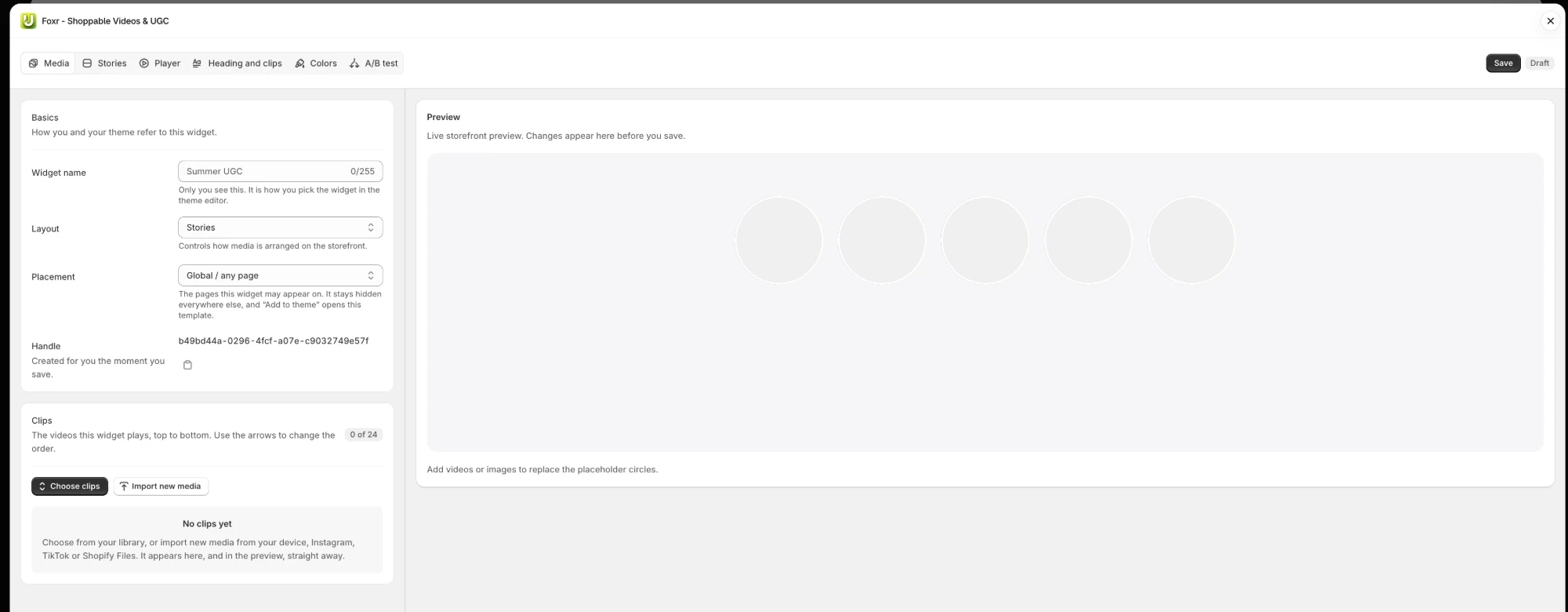
- In the app, open Video library and click Add media.
- Under Import from, click the TikTok tab.
- Tick I confirm that I have obtained the necessary permissions, copyrights, and authorizations. The link box stays locked until you do.
- Paste your links, separated by spaces or commas. Up to 5.
- Click Find media. After a few seconds you see a card for each video, with a preview and the first line of its caption. Nothing is downloaded yet.
- Untick any card you don't want. Every card starts selected.
- Click Add to library under the cards. (Not the one at the top of the page. That one is for the Shopify Files tab.)
Keep the page open. The import runs in your browser tab. If you leave early, the videos not yet done are not imported. Long clips can take about a minute each.
Each card shows a badge when it's done:
| Badge | What it means |
|---|---|
| Added | The clip is in your library. |
| Already added | You imported this post before, so it was skipped. |
| Processing | The video is in Shopify Files but not in your library yet. Wait a minute or two and try again. |
| Failed | The card says why. |
What the app saves
- A video file in Shopify Files, named like
tiktok-7301234567890.mp4. - A name from the first line of the caption, with hashtags removed (up to 80 characters).
- The full caption, up to 2,000 characters.
- Status: Active and Source: TikTok.
What it does not save: the creator's username and the link back to the original post. If you need to remember who made a clip, keep that in your own notes. (Don't put private notes in the clip name or caption. Those texts can be read publicly.)
Step 3: Tag a product
This is the step that makes the video shoppable.
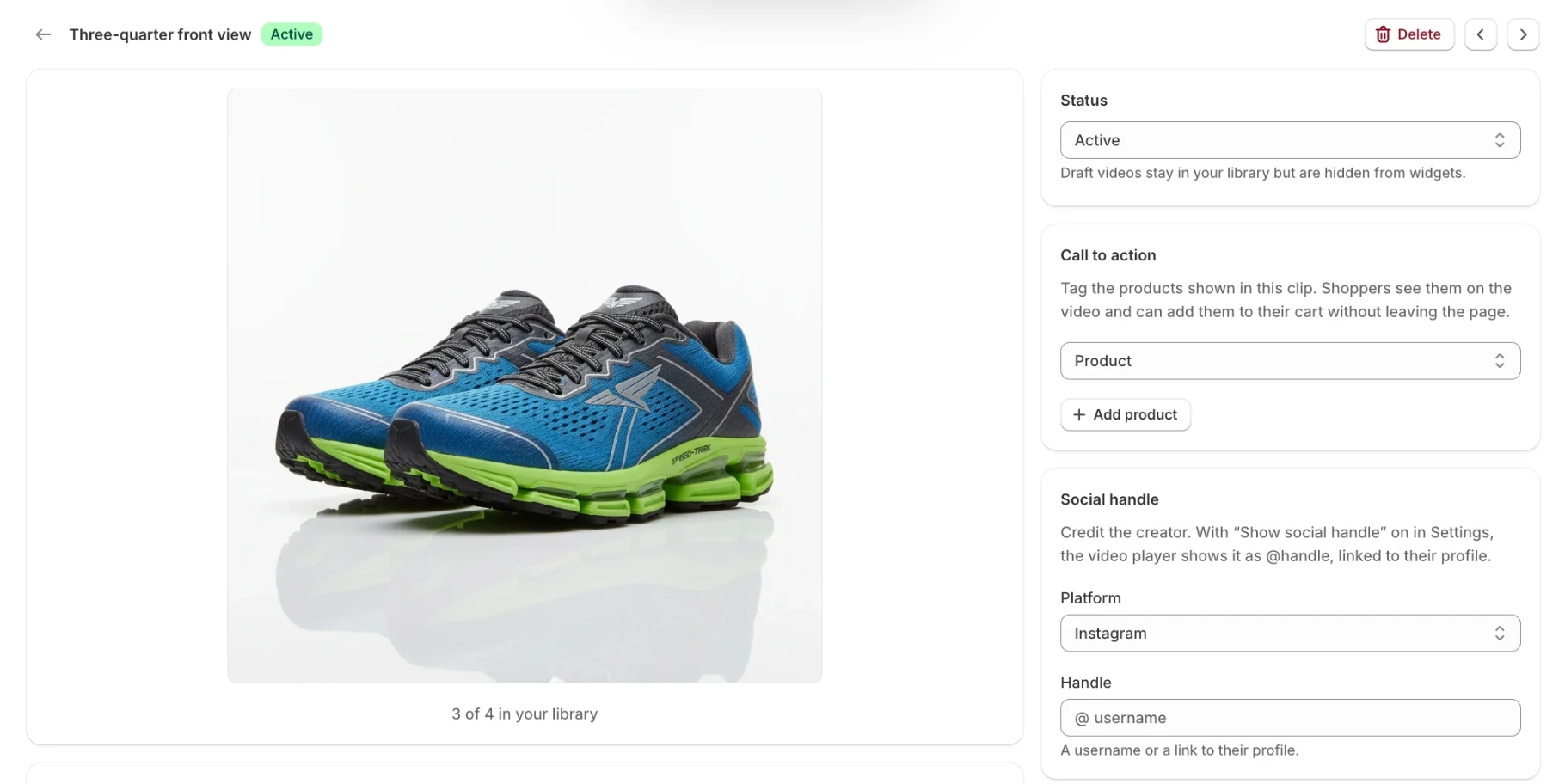
- If you imported one video, its page opens. If you imported several, click a clip in Video library.
- Under Call to action, set the menu to Product.
- Click Add product and pick the product the video shows.
- Click Save.
It shows on your store within a minute or two. One product per clip. If the video shows a full outfit, tag the main item.
The product must be Active in Shopify and on your Online Store. Draft and archived products never show. For more on tags, see how to tag products in videos.
Step 4: Put the clips in a widget
- Click Widgets → Add widget.
- Give it a name only you see, like "TikTok finds".
- Pick a Layout: Stories, Carousel, Grid, Pop up, or Product page.
- Click Choose clips, pick your TikTok clips (up to 24 per widget), and click Done.
- Click Save.
Not sure which layout? Short answers:
- Home page, "as seen on TikTok": Carousel. See how to add a video carousel.
- A wall of creator clips: Grid.
- Round bubbles like stories: Stories. See story-style bubbles.
- On one product's page: Product page. See Reels on product pages. It works the same for TikTok clips.
Step 5: Show the widget on your store
- In your theme editor (Online Store → Themes → Customize), click the App embeds icon and switch on FOXR - Shoppable Video. Save. Without this, widgets stay hidden.
- Back in the app, open your widget and click Add to theme. The theme editor opens with a new UGC widget block.
- Under Widget, click Select and pick your widget.
- Drag it where you want it, and click Save.
- Open your store on your phone and tap a clip. You should see the video, the product card, and a way to add to cart.
Want to check? In the app, go to Home and click Recheck in step 3 of the Setup guide. It says Live when it's ready.
When a link fails
| What you see | What to try |
|---|---|
| "…is private or unavailable" | Only public videos can be imported. |
| "…does not contain a video" | Photo posts don't work. Save the image and upload it instead. |
| "…could not be found" | Open the link in your browser. Copy it again from TikTok's Share menu. |
| "None of those look like…post links" | Paste a link to a video, not to a profile. |
| "Larger than 250 MB" | Trim or compress the clip, then upload it. |
| "The link may have expired" | Too much time passed between Find media and Add to library. Click Find media again. |
If TikTok keeps blocking an import, download the clip yourself (if you have the right to) and upload it with the Upload tab. It takes MP4 or MOV, up to 250 MB each, up to 8 files at a time.
Make TikTok clips work on a store
- Check the first 2 seconds. Show the product right away. Shoppers scroll fast.
- Check the sound. Many shoppers watch with sound off. Add subtitles with a
.srtor.vttfile so the words still land. Music is its own right too. A song in a clip may belong to someone else, so ask the creator about it, or pick clips with their own voice. - Skip clips that are about TikTok, not your product. Trend clips with the product on screen for 1 second won't answer "should I buy this?".
- Match the tag. A clip of a red dress should be tagged to that red dress, not your whole collection.
- Keep it short. 15 to 30 seconds is a good start. That's our rule of thumb, not a tested number.
What this can't do
- No live TikTok feed. New videos on your account don't show up on their own.
- No creator credit from the import. The app doesn't keep the TikTok username or the post link. The clip page has a Social handle card, but the docs we checked on November 12, 2026 say it doesn't show on the store yet. Test it on your store before you rely on it. Until then, credit the creator in the file's alt text and turn on "Show captions".
- No link back to the TikTok post.
- One product per clip. No multi-product tags.
- The app's Shopify listing is in English only.
- A new app. It launched September 25, 2026. On November 12, 2026, its listing showed 5.0 stars from 7 reviews. That's too few to call it proven.
FAQ
Can I add a TikTok video to Shopify for free?
Yes. Foxr Shoppable Videos & UGC is free on the Shopify App Store. Time and any creator fees are your only costs.
Does it keep working if the TikTok post is deleted?
Yes. The app saves a copy in your Shopify Files. That's good for stability, but it also means you must remove a clip yourself if the creator asks. See our permission guide.
Can I import a private TikTok video?
No. Only public videos work.
Can I import a TikTok photo post?
No. The post must contain a video.
Can shoppers buy from the video?
Yes, if you tag a product. They tap the product card, pick a size or color, and add to cart without leaving the video. Then they check out as usual.
Does adding TikTok videos slow my store?
The widget loads its pictures as shoppers scroll to them, and videos load when opened. We measured the real file sizes in this speed guide.
Next step: import one clip
Pick one TikTok you have the rights to. Import it, tag the product, and put it in a Carousel on your home page. Check it on your phone.
Foxr Shoppable Videos & UGC is free on the Shopify App Store. Setup uses theme blocks, so there's no theme code to paste on Online Store 2.0 themes.
Facts checked against the app's documentation and listing on November 12, 2026.