
How to Add Shoppable Videos to Shopify (7 Steps, No Code)
By Foxr Team · Foxr · Updated · 28 min read
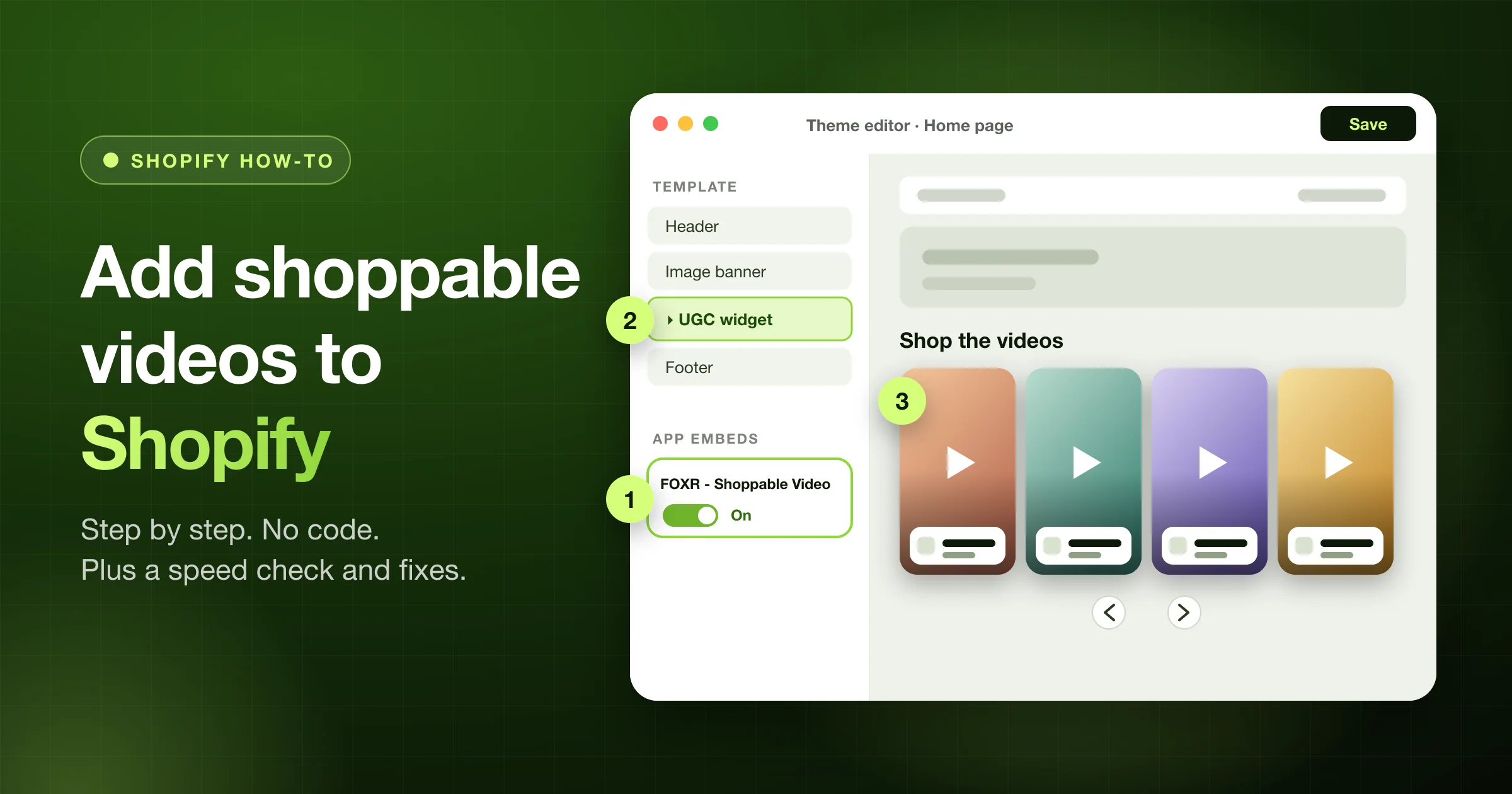
To add shoppable videos to Shopify, install a shoppable video app and add your clips. Tag one product on each clip, then build a widget. Last, switch on the app embed in the theme editor and place the app's block on a page. On an Online Store 2.0 theme, none of this needs code.
This guide walks through every screen in Foxr Shoppable Videos & UGC, our free app, using the exact button and field names. You also get an 11-point phone test, a quick speed check, and 11 fixes for when the widget won't show.
Most apps that use theme app blocks follow the same steps. To compare apps first, see our list of UGC apps for Shopify. New to the idea? Start with What Is Shoppable Video?
Full disclosure: We make Foxr Shoppable Videos & UGC. The steps come from its docs and Shopify's Help Center, checked on October 11, 2026. We say where it has limits.
Key takeaways
- 7 steps: install, add clips, tag products, build a widget, turn on the app embed, add the block, check it's live.
- The app embed is the step people miss. Shopify keeps it off after install. Until you switch it on, your widget stays hidden.
- Start with one product page. Your best seller is the right first test.
- Test on a real phone, then place one test order to see the sale show up.
- Check page speed before and after.
Before you start: 5-point checklist
- An Online Store 2.0 theme. These themes use JSON templates and can hold app blocks. Older ("vintage") themes can't, but you can paste embed code instead (see below).
- Videos ready. Foxr Shoppable Videos & UGC takes MP4 and MOV videos up to 250 MB, and JPG, PNG and WebP images up to 20 MB. Vertical 9:16 clips suit its player best.
- Active products. A product must be Active in Shopify to show on a video. Also check that it's on your Online Store sales channel. If it isn't, shoppers who tap it can land on a "page not found".
- Permission for customer clips. Get a written "yes" first. See how to ask customers for permission.
- Your starting numbers. Write down your product page conversion rate, add-to-cart rate, and speed numbers. You'll compare later.
Safe-test tip: build on a copy of your theme first.
- Go to Online Store → Themes.
- Open your theme's actions menu (…) and click Duplicate. The copy is named "Copy of" plus your theme's name.
- Build on the copy, then publish it when it works.
On the copy, skip the app's Add to theme, Add to home page, Turn on app embed, and Open theme editor buttons. They always open your live theme. Instead, open the copy in the theme editor from Online Store → Themes, turn on the embed (Step 5), and add the block the manual way (Step 6).
The app only checks your published theme, so it won't show Live until you publish.
Can Shopify do shoppable video without an app?
No. Shopify can show product video, but shoppers can't buy from inside it.
- Shopify's built-in product video. Open a product, go to Media, and upload a video. Shopify takes MP4, MOV, and WEBM files up to 1 GB and 10 minutes (its Files page recommends the H.264 codec). Most themes show it as a plain video in the product gallery.
- Your theme's video section, or a YouTube embed. Both play video on a page. Neither is shoppable.
- What's missing. There's no product tag and no add to cart inside the video.
To let shoppers buy from the video, you need an app. That's what the rest of this guide covers.
Where to put your first widget
Pick one page to start. Each row shows the layout that fits and the Placement setting to choose in Foxr Shoppable Videos & UGC.
| Page | Layout | Placement setting |
|---|---|---|
| Product page | Product page | Product pages (locked) |
| Home page | Stories or Carousel | Home page or Global / any page |
| Collection page | Stories | Collection pages |
| About or FAQ | Grid | Pages |
| Every page | Pop up | Global / any page |
| Cart | We'd skip it | No Cart option |
| Checkout | Not possible | App blocks can't show there |
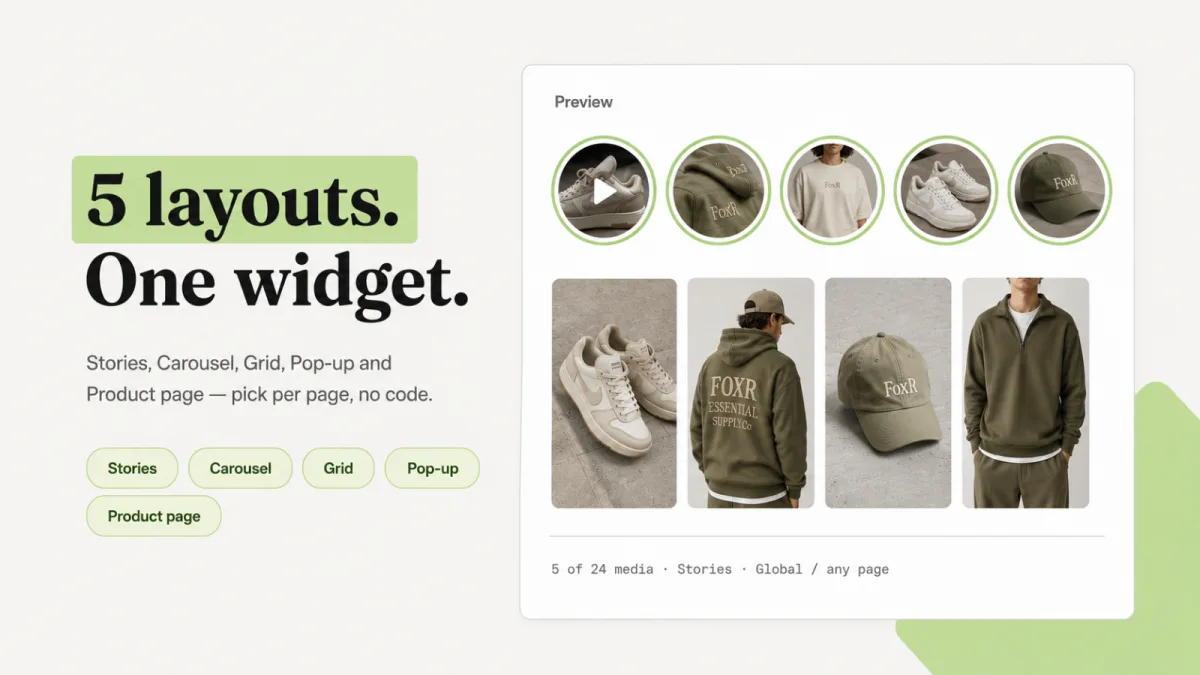
Start with the Product page layout on your best seller. One widget serves every product page and shows the clips tagged with the product being viewed. It holds up to 24 clips in total, across all your products. By default, a product with no tagged clip shows all the widget's clips (see Step 4).
Collection pages covers each collection, but not the page that lists all your collections.
To show a widget on just one page or one collection, give it its own template (steps).
Step 1: Install the app
- Open Foxr Shoppable Videos & UGC on the Shopify App Store.
- Click Install and pick your store.
- Approve the permissions Shopify shows.
What to know:
- You land on Home. Its Setup guide lists 3 steps: Create a widget, Add videos and tag products, and Add the widget to your theme. The header tracks progress, like "2 out of 3 steps completed".
- Nothing changes for shoppers yet. They see nothing until you add a widget to your theme.
- The app never edits your theme. It can read your live theme to check your setup. You add the block and turn on the embed yourself, in Shopify's theme editor.
- The attribution pixel is added for you. The first time you open the app, it adds the FOXR attribution pixel to your store. There's nothing to set up, but sales made before that first visit can't be credited.
- Help is on Home. The Book a call button opens a live chat with us.
Step 2: Add clips to your Video library
Widgets only play clips from your Video library, and the widget editor has no upload button. So start here. There are three ways in.
Upload from your computer
- Click Video library (the page is titled Media), then Add media. It opens on the Shopify Files tab.
- Under Import from, click Upload.
- Drag up to 8 files onto Upload videos or images. You'll see progress like "Uploading 2 of 3 to Shopify Files…".
- When it's done, the page switches back to Shopify Files and shows Uploaded to Shopify Files.
- New files aren't selected for you. Wait for Processing to clear. The list doesn't refresh itself, so click Search to check again.
- Click each file. A counter reads like "3 of 25 selected". Then click Add 3 to library at the top right.
Add a single file and its clip page opens, so you can tag it right away.
Add from Shopify Files
Already have videos in Shopify, under Content → Files? Open Add media, stay on the Shopify Files tab, and find them with Search by filename. Then do steps 5 and 6 above. Files already in your library show Already added.
Import from Instagram or TikTok
- Open Add media and pick the Instagram or TikTok tab.
- Tick I confirm that I have obtained the necessary permissions, copyrights, and authorizations. The link box opens up.
- Paste up to 5 links to public reels or video posts, separated by spaces or commas. Click Find media.
- Click the Add to library button under the cards, not the one at the top of the page.
- Keep the page open until each card says Added. The import runs in your browser tab.
Good to know:
- Stories, private accounts, and photo posts don't work. Each video can be up to 250 MB.
- You get your own copy. Foxr Shoppable Videos & UGC saves each video to your Shopify Files, so it keeps playing if the post is deleted.
- Credit is on you. The app doesn't keep the creator's @username or the post link, so write down who to credit.
- No duplicates. Pasting a post you already imported shows Already added. The one exception: if you renamed or deleted its file in Shopify Files, a re-import makes a second clip.
Add subtitles
Subtitles help shoppers who watch with the sound off. Foxr Shoppable Videos & UGC doesn't make them for you, so you need a subtitle file.
- Open a clip in Video library.
- Under Details, click Upload subtitle file and choose a
.vttor.srtfile up to 512 KB. - Click Save. To check it worked, look under Subtitles (WebVTT) for a line count like "12 cues".
Shoppers get a CC button in the player. In Settings → AEO & GEO, Add video structured data and Include the transcript in structured data are both on by default. With both on, about the first 1,200 characters of your subtitles also go into your video structured data.
Film for the player
- Film vertical. The player is always a tall 9:16 frame. Horizontal clips get cropped unless you turn off Crop to fit vertical aspect ratio in Settings → Fullscreen player.
- Keep each file under 250 MB. Trim or compress anything bigger.
- Leave Playback mode on Performance. In Settings → Videos, Performance is the default. It plays a smaller version (up to 720p), so videos start sooner once tapped, but it doesn't change how fast the page loads. On Quality, iPhone HEVC
.movfiles may not play in some browsers. - Need ideas on what to film? See shoppable video ideas for Shopify.
Step 3: Tag a product on each clip
Tagging is what makes a video shoppable.
- In Video library, click a clip.
- Under Call to action, set Link type to Product.
- Click Add product. Shopify's product picker opens. Pick the product shown in the clip.
- Click Save in the save bar at the top. There's no "Saved" message. The bar just disappears.
Repeat for each clip. Tags show on your store within a minute or two, even in widgets you already saved.
One exception: if a Product page widget has Show every clip when none match turned off, open that widget and click Save after you tag the first clip for a product.
Rules to know:
- One product per clip. If a clip shows an outfit, tag the item you most want to sell.
- Only Product reaches shoppers. Collection and Custom link are saved, but shoppers don't see them. Switching away from Product removes the tag.
- The product must be Active in Shopify. A draft, archived, or unlisted product gets a warning badge on the clip page and isn't shown to shoppers.
- Sold-out products still show unless you turn on Hide out of stock products and variants in Settings → Products.
- Find untagged clips. In Video library, set the Product filter to No product. Each card's bottom-left number is its product count, and 0 means not shoppable yet. If your store has Sidekick, you can also ask: "Which FOXR clips have no product tagged?"
Step 4: Create a widget
A widget is one arrangement of clips, like a row of story circles or a strip on the product page. This is the editor you'll see.
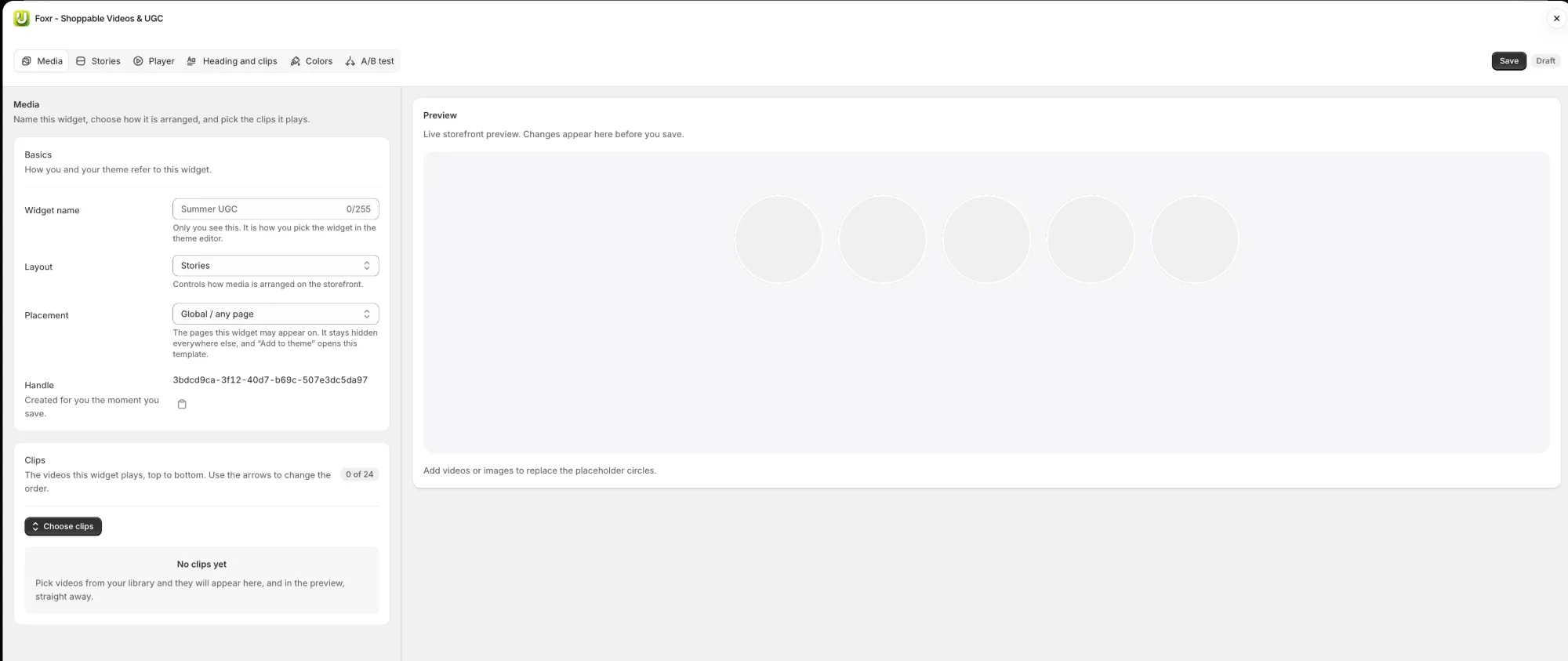
- Click Widgets, then Add widget. The editor opens full screen on the Media tab, with a live Preview on the right. The tabs across the top are Media, one named after your layout (here Stories), Player, Heading and clips, Colors, and A/B test. Grid widgets also get a Columns tab, and on a Pop up, Heading and clips is called Clips.
- In the Basics card, type a Widget name (up to 255 characters; the box suggests "Summer UGC"). Only you see it. It's how you pick the widget in the theme editor.
- Pick a Layout: Stories (the default), Carousel, Grid, Pop up, or Product page.
- Leave Placement on Global / any page, or pick a narrower one as a safety net (see the table above).
- Ignore Handle. It says "Created for you the moment you save", and you only need it for embed code.
- In the Clips card (badge "0 of 24"), click Choose clips. In the Media library window, click each clip so it shows Selected, then click Done. Reorder with the up and down arrows. There's no drag and drop.
- Click Save at the top right. You'll see Widget saved, and the badge changes from Draft to Active. Two new buttons appear: Add to theme and Embed code.
If you see "Could not save", the banner says why:
- "Name is required." Type a Widget name.
- "Pick at least one video or image from Shopify Files." Choose at least one clip.
- "Some files are still processing." Wait a minute, then save again.
Good to know:
- Placement is a filter. It never adds the widget anywhere. The widget shows only where you put its block, and only on page types its Placement allows.
- For a home page widget, Global / any page or Home page both work. Home page is a safety net: the widget can't show up by mistake if its block is ever added to another page.
- The Product page layout locks Placement. Choosing Product page switches Placement to Product pages and locks it. On its Product page tab, Which clips starts on Only clips tagged with this product, and Clips on screen is 3 (you can pick 1 to 6). Show every clip when none match starts on. Turn it off to hide the strip on products with no clip.
- "Active" doesn't mean live. It only means the widget has clips. Steps 5 and 6 put it on your store.
- The preview is desktop-only and shows still images. Check phones on a real phone (see the phone test below).
Step 5: Turn on the app embed
This is the step people miss. Shopify keeps app embeds off after install, and only you can turn one on and save it. Until you do, every Foxr Shoppable Videos & UGC block stays hidden, even in the theme editor preview.
- In your Shopify admin, go to Online Store → Themes.
- Next to your live theme, click Customize. Shopify's Help Center calls this button Edit theme.
- In the left sidebar, click the App embeds icon.
- Find FOXR - Shoppable Video and switch it on.
- Click Save at the top right.
Doing this before Step 6 means your widget shows in the theme editor preview as soon as you pick it.
Shortcut if you add the block first: once your block has a widget picked, Home's step 3 shows App embed off with a Turn on app embed button. It opens the theme editor with the embed already on. Click Save, then Recheck in the app.
Good to know:
- Do it once per theme. If you publish a different theme later, turn the embed on there and add your blocks again.
- The embed carries your Settings to your storefront: product card, player, and button options, plus button text in the shopper's language. It has no settings of its own.
- Two exceptions: a Pop up and embed code still show with the embed off. But a Pop up ignores your Settings page until the embed is on, and both show the built-in button text in English only.
Step 6: Add the block to your theme
An app block is a piece of an app that you place inside a page. In Foxr Shoppable Videos & UGC, it's called UGC widget. You can add as many as you like, on as many pages as you like.
The fast way
- Open your saved widget and click Add to theme in the top bar. It opens in the same browser tab, so save your widget first.
- The theme editor opens on the page type that matches the widget's Placement, with a new UGC widget block in a new Apps section. A Product pages widget opens your default product template.
- Click the UGC widget block in the left sidebar.
- Under Widget, click Select and choose your widget by its name.
- Drag the section to where you want it.
- Click Save.
For your home page, there's an even faster route. On the app's Home, click Add to home page in step 3 of the Setup guide. The theme editor opens on your home page with a UGC widget block already added. Then do steps 3 to 6 above.
Each click adds a new block. Add to theme and Add to home page add one every time. To remove an extra, click it and choose Remove block. To open the theme editor without adding anything, use Open theme editor on Home.
The manual way
In the theme editor of any Online Store 2.0 theme, pick the page from the menu at the top. Click Add section, then choose UGC widget under Apps. Then pick your widget as in steps 3 to 6.
Where to put it
- Product page: below the buy buttons or near the description. Keep it below your main product image, so it's less likely to delay your most important image.
- Home page: right under your hero or first section.
- Every page (a Pop up): set Placement to Global / any page and add the block to your footer area.
- Other product templates: if some products use a different template, add a block to that template too.
Show a pop-up only on product pages
Want a home page section plus a pop-up on product pages? Use two widgets. For the pop-up:
- Create a widget with the Pop up layout. Set Placement to Product pages, choose your clips, and click Save.
- To move it, open the widget's Player tab, set Corner (pop up and player) to a corner such as Bottom left, and save again.
- Click Add to theme. It opens your default product template with a new block. Pick the widget in the block and click Save.
A pop-up plays the widget's clips, not just the clips for the product being viewed. Only the Product page layout filters by product. If a chat app already sits in the bottom-right corner, pick another corner.
Step 7: Check that it's live
- Open your store on the page where you added the block.
- In the app, go to Home and click Recheck in step 3 of the Setup guide.
- Read the badge.
| Badge | What it means | Fix |
|---|---|---|
| Live | Block, widget, and embed found | None. It lists pages, like "Product pages" |
| App embed off | Embed is off or not saved | Turn on app embed, Save, Recheck |
| No widget selected | The block is empty | Pick a widget under Widget |
| Turned off | Block or section is hidden | Unhide it in the theme editor |
| Not added | No block in your live theme | Do Step 6 |
When all 3 steps are done, Home says "Setup complete. Your videos are live."
Good to know:
- With Turned off, don't click Add to home page. You'd get a second block instead of showing the hidden one.
- Live can still hide a widget if its Placement doesn't allow that page, or it has fewer clips than its minimum.
- Home only checks your published theme. A block on a draft theme won't be found until you publish it.
If your theme is older (no app blocks)
Home shows This theme cannot use app blocks with a Get the Liquid snippet button. You can move to an Online Store 2.0 theme, or paste embed code:
- Duplicate your theme first, since you'll edit code.
- Open the widget and click Embed code in the top bar. You'll see Snippet copied.
- Go to Online Store → Themes → … → Edit code.
- Open the template for that page (for a vintage home page,
templates/index.liquid), paste, and click Save.
Know the trade-offs:
- You never re-paste. The snippet always shows your latest saved widget.
- The Product page layout still needs the app embed on, so it knows which product the page is for.
- Without the app embed, player buttons show in English only. Your own wording from Settings → Translation still applies.
- Home's step 3 never ticks for embed code. That's expected, so tick it yourself.
- Uninstalling doesn't remove embed code. You have to delete it from your theme yourself.
Test your shoppable videos on a phone: 11 checks
Test on a real phone, not just your computer. Foxr Shoppable Videos & UGC counts "phones" as screens 749 px wide or narrower.
- Tap a clip. The player should fill the screen.
- Swipe up. The next clip should play.
- Check the sound. Some browsers, especially on iPhones, only allow sound after a tap. No sound at all? Check that Open muted (Settings → Fullscreen player) and Start with sound off (the widget's Player tab) are both off.
- Look for subtitles. If you added a subtitle file, a CC button shows in the player. New subtitles can take up to about 10 minutes to appear.
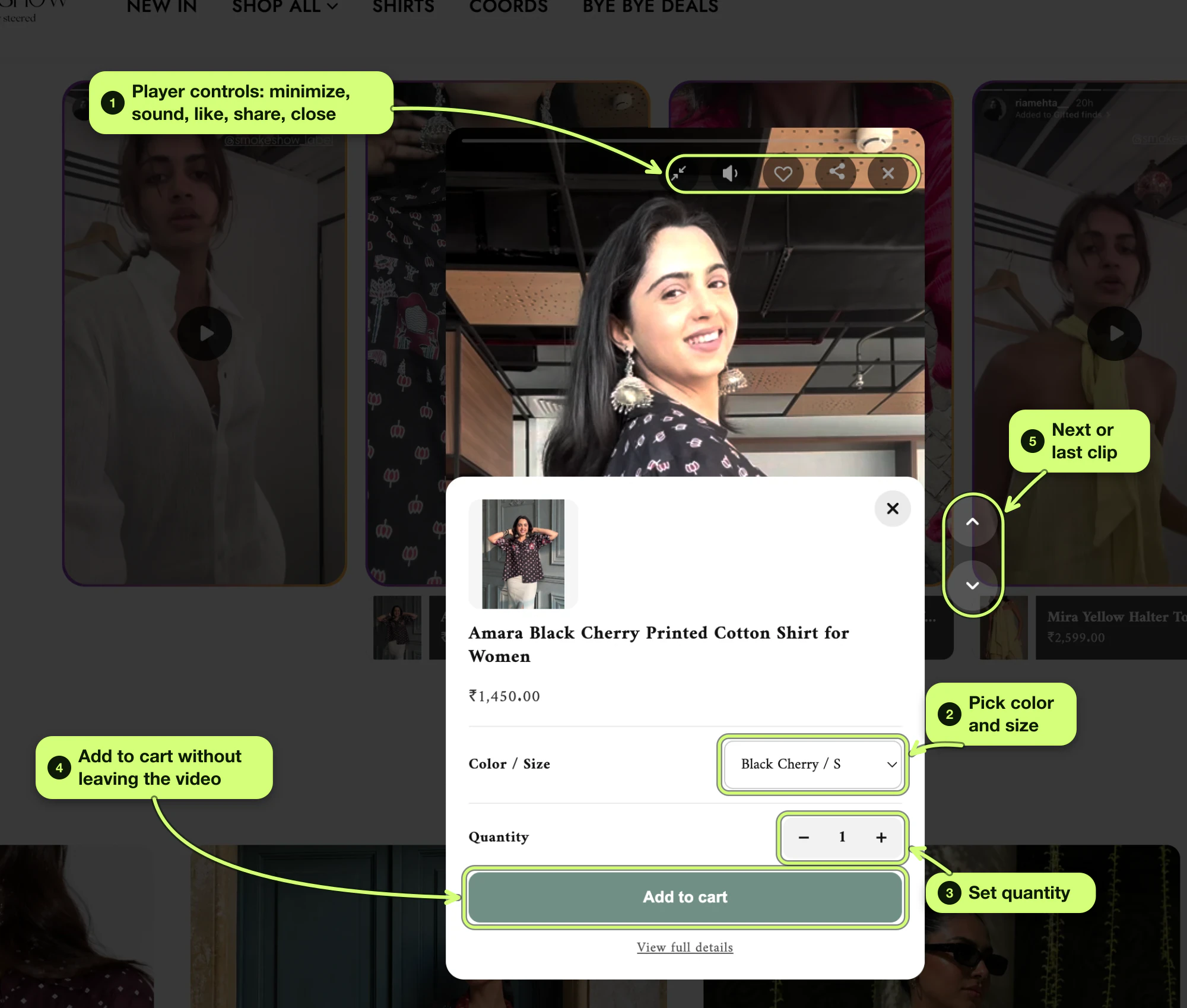
- Tap the product card. The quick add panel should open.
- Pick a variant. Try a size or color, and change the quantity.
- Tap Add to cart. Settings → Products → Add to cart action decides what happens. Go to cart (the default) opens the cart page. Quick add shows a message like "Summer Dress added to cart" and keeps the video playing.
- Check the cart count. Adding from a video doesn't open your cart drawer or update the header count right away. With Quick add, the count updates on the next page the shopper opens. If your theme relies on a cart drawer, keep Go to cart.
- Try the back button. On Android, the back gesture may close the player instead of the page.
- Try a private window. It resets a closed pop-up, so you'll see it fresh.
- Place one test order from a clip. Accept analytics cookies first if your store asks, because the FOXR attribution pixel only runs for shoppers who allow it. Follow Shopify's test order steps. Customers can't place real orders while test mode is on, so switch it off right after. Then reload Analytics in the app and look for the order.
Test orders count in Analytics, so leave yours out when you read results.
What a working setup looks like: here's the quick add panel on Spell by Smokeshow, a live Shopify store that uses Foxr Shoppable Videos & UGC (checked on October 11, 2026). Checks 5 to 7 should get you to this screen.
Will shoppable videos slow down Shopify? A quick speed check
Video can slow a page, and a slow page can cancel what the video earns. So measure.
- Where to look: Shopify's web performance summary is on the Themes page. The full reports are under Analytics → Reports and need the Reports permission.
- Allow for the lag: Shopify says the data can be up to 36 hours behind.
- Measure twice: once before you add the widget, and again a few days after.
What Foxr Shoppable Videos & UGC does by default:
- Poster images load as they scroll into view, and preview videos load only when needed.
- The player loads only the current clip and the ones either side of it.
- Preview videos are off for Stories, Carousel, and Grid, so shoppers tap to play. The Product page strip plays a silent preview of its middle clip (Featured clip only).
We haven't published a speed test of Foxr Shoppable Videos & UGC, so check your own store.
If your page got slower, try these in order:
| What you see | Try this |
|---|---|
| Widget high on the page | Move it below your main image |
| Previews playing on thumbnails | Set Preview videos to off |
| Lots of clips on screen | Cut to your best few |
| Old video apps still installed | Remove the ones you don't use |
To turn previews off, open the widget and go to the tab named after your layout (for example Carousel). In the On the thumbnails card, set Preview videos to the "Off" option.
Shopify's theme performance guide says never to lazy-load the LCP image, which is usually your main product image. Keeping the widget below that image keeps it out of the way. For the 3 speed numbers and what they mean, see our video conversion guide.
Read your results
- Click Analytics. Date range starts on Last 30 days. On a quiet store, pick Last 90 days.
- Start with Attributed revenue and Orders.
- To see one widget, go to Widgets and click the chart button (View analytics) on its row. Its Clips section shows a card for each clip, highest revenue first.
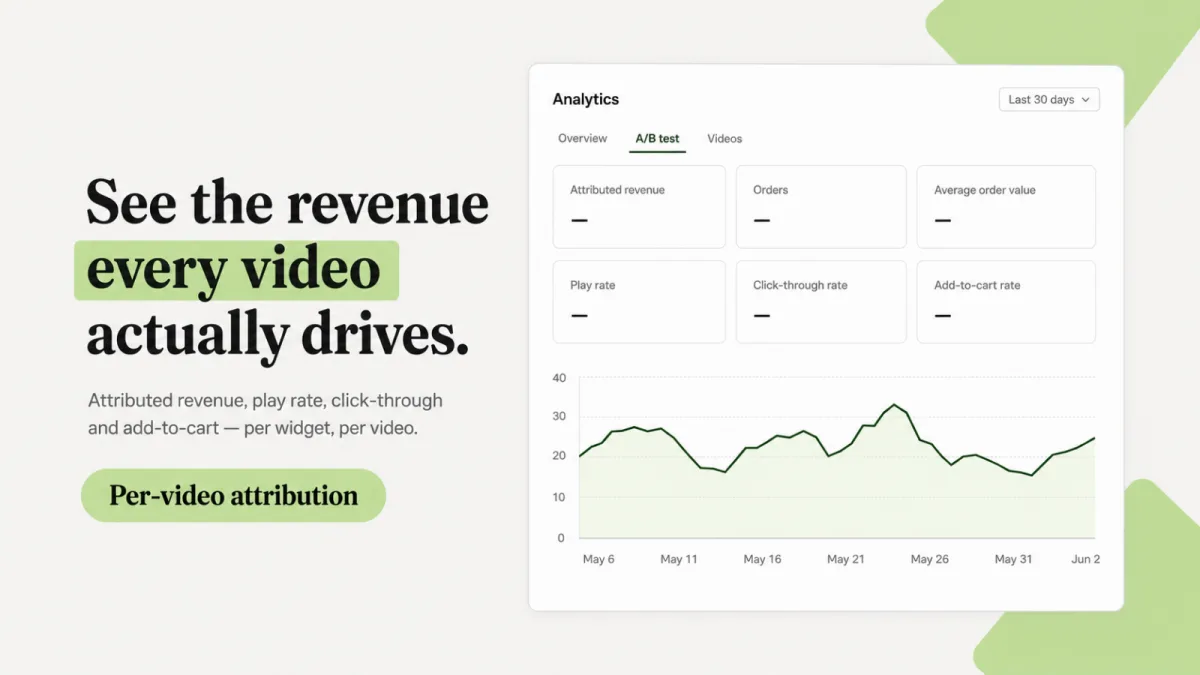
How credit works: a clip gets credit when a shopper adds a product from it, or goes to the product page from it. They must buy within 30 days, from the same cart. Only that product's amount counts.
Read the numbers with care:
- Declined cookies: if a shopper declines analytics cookies, their purchase isn't credited, but their views and clicks still count. So where shoppers are asked about cookies, your video conversion rate reads lower than it really is.
- Nothing is filtered out: refunds aren't subtracted, test orders count, and your own visits count.
- Different totals: the Widgets page shows all-time totals, so its numbers won't match the 30-day view.
- Where the data lives: days are counted in UTC, there's no export, and these numbers don't show up in Shopify's own Analytics.
To test whether video lifts your conversion rate, see our video conversion guide. For why credit is never exact, see What Is Shoppable Video?
Optional: A/B test your widget
- Open the widget's A/B test tab and click Create variant B.
- With Variant B selected, change one thing.
- Turn on Run this test and leave Traffic to variant B at 50%.
- Click Variant A in the top bar, then click Save. The test starts when you save.
If you save while Variant B is selected, Placement resets to Global / any page. Give each version at least 500 views and a full week. Results show on the Widgets page and the widget's analytics page, not in the editor.
Help search engines find your videos
In Settings → AEO & GEO, two switches are on by default. Your clip names do the rest.
- Add video structured data adds a VideoObject for each video in your widgets.
- Include the transcript in structured data adds about the first 1,200 characters of each video's subtitles. It only works while the first switch is on.
- Name your clips well. The video title comes from the clip's Name (up to 110 characters are used) and the description from its Caption (up to 500). New clips are named after their file, so rename them.
Keeping it current: when you save a clip, its widgets update for you. One exception: after you rename a product in Shopify, open the widget (or the clip) and click Save.
Don't expect video results for product pages. Google shows a video in its video features only when it sits on a "watch page," a page made mainly to show that one video. Google says a product page isn't one.
The page can still show as a normal result, or in Google Images with a video badge. More in What Is Shoppable Video?
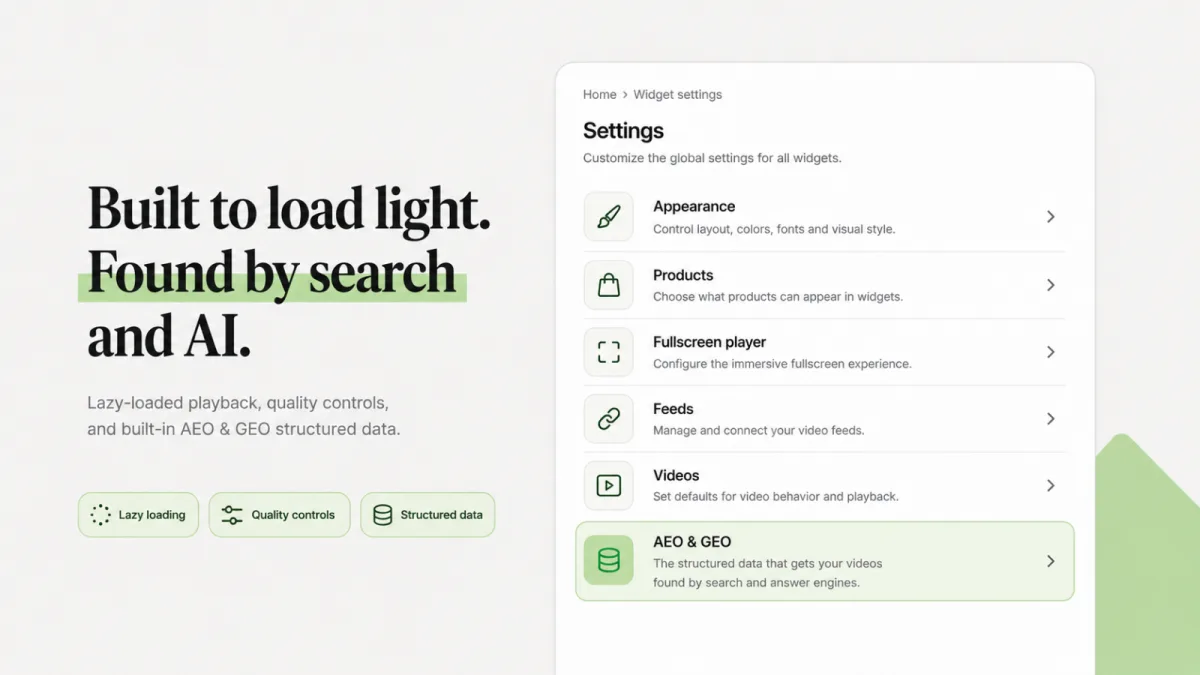
This is a marketing image of the Settings page. The live page also has a seventh group, Translation, and Feeds only sets the minimum number of clips a widget needs.
Shoppable video not showing on Shopify? 11 fixes
| Symptom | Likely cause | Fix |
|---|---|---|
| Nothing shows | App embed is off | Turn on FOXR - Shoppable Video, Save |
| "Select a widget in the theme editor…" | Block has no widget | Pick a widget or remove the block |
| Shows in editor, not live | You edited a draft theme | Edit your live theme and Save |
| Hidden on one page type | Placement doesn't allow that page | Change Placement on the Media tab, Save |
| Shows on a page type it shouldn't | Saved while Variant B was selected | Click Variant A, set Placement, Save |
| Product strip hidden | No tagged clip, fallback off | Tag a clip, then Save the widget |
| Widget hides itself | Fewer clips than its minimum | Add clips, or lower the minimum |
| Pop up missing | Wait is 5 s by default, or you closed it | Wait, or use a private window |
| Captions missing | Show captions is off, or no alt text | Turn it on, add alt text, Save |
| Blank gap on the page | A hidden widget leaves spacing | Remove the block from that page |
| "Cannot use app blocks" | Vintage theme | Use embed code |
Where the minimum lives: each widget's Heading and clips tab (Clips on a Pop up) has Show only with at least, and Settings → Feeds has Minimum media to display feed. The higher number wins, and Draft clips don't count.
Product strip: to show every clip on products with no tagged clip, turn on Show every clip when none match on the widget's Product page tab.
Captions: Show captions is on the widget's Player tab and starts off. Captions come from each file's alt text in Content → Files, not the clip's Caption field.
Still stuck? Read the docs page on widgets not showing, or click Book a call on the app's Home to chat with us.
If you uninstall
- Shopify removes the UGC widget blocks and the app embed from your theme, so widgets stop showing.
- Embed code you pasted stays. Delete it yourself.
- Your files stay in Shopify Files. Foxr Shoppable Videos & UGC never deletes files.
- Analytics are deleted about 48 hours after you uninstall.
- Clips, widgets, and settings may be kept by Shopify for a while, so reinstalling soon can bring them back. That isn't guaranteed, and you'd add the blocks again either way.
How we made this guide
- On October 11, 2026, we re-checked every Foxr Shoppable Videos & UGC step against its live docs. We fixed several points that were out of date, including Home page placement, duplicate imports, and the app embed shortcut.
- The same day, we re-checked the Spell by Smokeshow store and the App Store listing.
- We also read 7 pages that rank for this topic that day (Videowise, Novel, Acowebs, Firework, Vidjet, Storista, and Shopify's blog). None mentioned the app embed, and none had a troubleshooting section, so we added both.
- The Step 4 image is a real screenshot of the widget editor.
- The Shopify facts come from the Help Center and shopify.dev. The video search rules come from Google Search Central.
- We didn't test other apps hands-on.
- We make Foxr Shoppable Videos & UGC, and we named its limits.
- Buttons and menus change. If something looks different, check the linked docs.
FAQ
How do I add a shoppable video to Shopify without code?
Install a shoppable video app such as Foxr Shoppable Videos & UGC. Add your clips and tag a product on each. Create a widget, turn on the app embed, and add the app's block in the theme editor. On an Online Store 2.0 theme, none of this needs code.
Do I need an Online Store 2.0 theme?
For app blocks, yes. Older themes can still show a Foxr Shoppable Videos & UGC widget with embed code, which means pasting a snippet into your theme's code.
Why is my shoppable video not showing on Shopify?
The most common cause is the app embed being off. Shopify keeps embeds off after install. Other causes are an empty block, a draft theme, a Placement that doesn't allow that page, or too few clips. In Foxr Shoppable Videos & UGC, click Recheck on Home to see which one it is.
Can shoppers add to cart without leaving the video?
In Foxr Shoppable Videos & UGC, yes. They tap the product card, pick a variant and quantity, and tap Add to cart in the quick add panel. Then they go to the cart page (the default) or keep watching, depending on your Add to cart action setting.
Will shoppable video slow my store?
It can. In Foxr Shoppable Videos & UGC, posters load as shoppers scroll, the player loads only nearby clips, and thumbnail previews are off by default for Stories, Carousel, and Grid. Place the widget below your main image and check your speed before and after.
How many videos should I add?
Start with 3 clips for one product, one per shopper doubt. The Product page strip in Foxr Shoppable Videos & UGC shows 3 clips on screen by default, with the next one peeking in. A widget holds up to 24 clips, and a Grid shows all of them at once.
Can I put a shoppable video in my cart or checkout?
Foxr Shoppable Videos & UGC has no Cart placement option, and we haven't tested it on the cart page. We suggest skipping the cart, because shoppers there are about to pay. Checkout isn't possible: Shopify says app blocks can't render on checkout pages.
Can I see video sales in Google Analytics or Shopify Analytics?
Not with Foxr Shoppable Videos & UGC. Its numbers live only on the app's Analytics page. They don't appear in Shopify's own Analytics, there's no export, and its docs don't mention a Google Analytics connection.
Can I use Instagram or TikTok videos?
Yes, if you have the rights. Foxr Shoppable Videos & UGC imports up to 5 public reels or video posts at a time, and you must tick a permissions box before you can paste links. It doesn't sync a feed. For a feed that updates itself, see our guide to a shoppable Instagram feed.
Next step: set up one widget today
Pick your best seller. Add three clips, tag the product, build a Product page widget, turn on the embed, and add the block. Then run the phone test.
Foxr Shoppable Videos & UGC is free on the Shopify App Store (5.0 stars from 7 reviews, launched September 25, 2026, English-only listing; checked on October 11, 2026). Or read the setup docs first.
Once your videos are selling, grow each order too. Foxr ‑ Bundle Builder lets shoppers build their own mix-and-match box with tiered discounts.