
Shopify Video Reviews: Turn Reviews Into Shoppable Videos
By Foxr Team · Foxr · · 9 min read
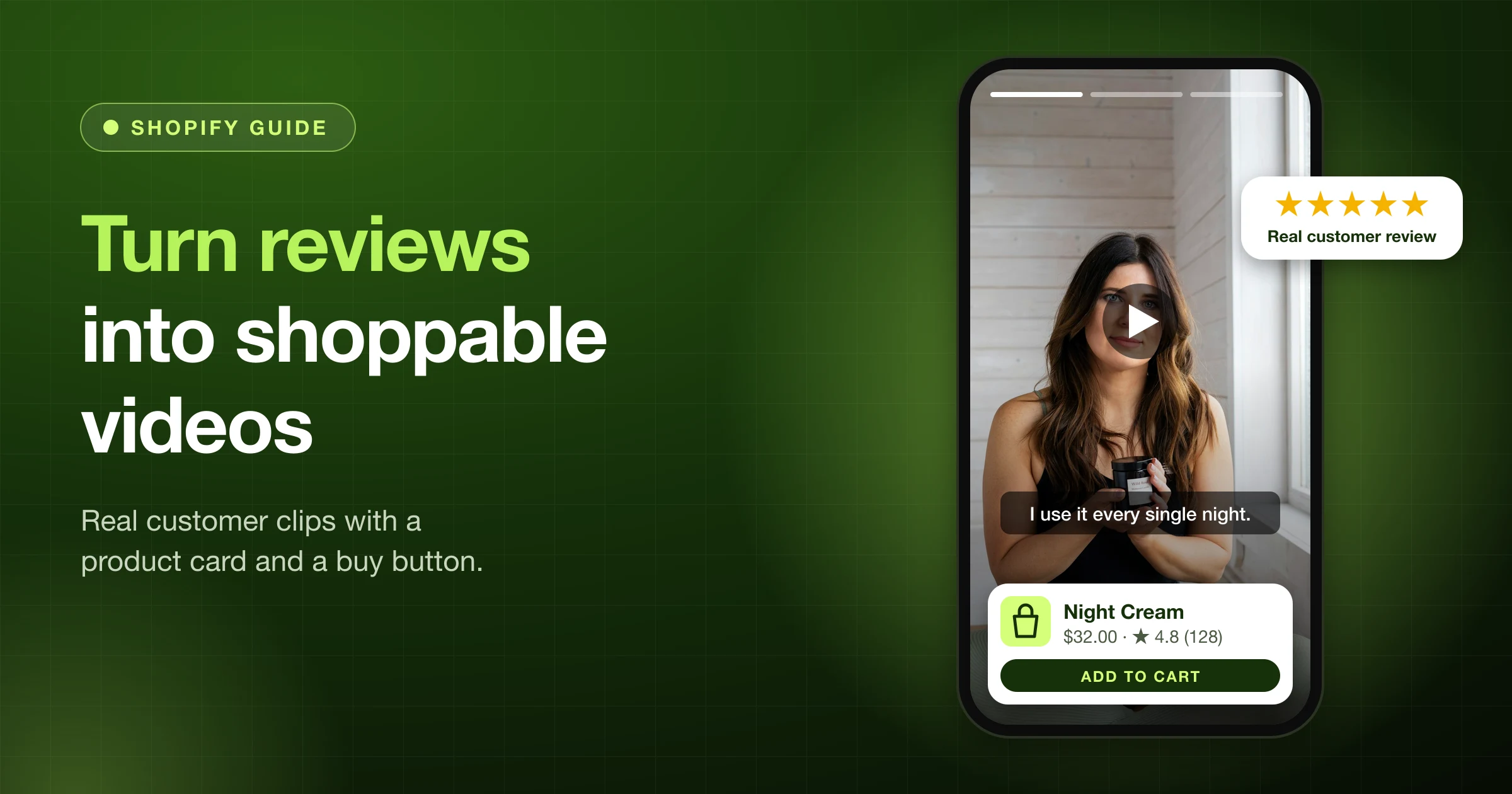
To turn customer reviews into shoppable videos, ask happy customers for a 15 to 30 second clip, get their written OK, upload it to Foxr Shoppable Videos & UGC, add subtitles, tag the product, and show it on the product page. A written review says "I liked it". A video review shows it, and now the shopper can add that same product to cart from the video.
The app doesn't collect reviews for you or turn text into video. You collect the clips. The app makes them shoppable. This guide shows the whole path.
Key takeaways
- Use real customers only. The FTC bans fake reviews, including AI-generated ones from people who don't exist.
- Ask your best reviewers first. They already like the product.
- Get permission in writing. See our permission guide.
- Add subtitles. Shoppers often watch with sound off. The app takes
.srtand.vttfiles. - Tag one product per clip. That's what makes the review shoppable.
- Show star ratings on the card with one switch, if your reviews app uses Shopify's standard rating fields.
- Don't edit what they mean. Trim for length, not to change the message.
Words used in this guide
A customer review clip goes through the same pieces as any other clip.
| Term | What it means |
|---|---|
| Clip | One video or image in your library. The app also says "video" or "media". |
| Tagged product | The product a clip shows. Shoppers can buy it from the clip. |
| Widget | One arrangement of your clips on the store, with its own layout and design. Example: a row of story circles. |
| Layout | How a widget arranges its clips: Stories, Carousel, Grid, Pop up, or Product page. |
| Subtitles | Timed text for a clip, from a .srt or .vtt file. Shown in the player. |
| Product card | The photo, name, price, and + button shown over the bottom of the video. |
Why a video review beats a text review
- It shows the product in use. Size, color, and fit are clearer.
- It's harder to fake. A real face and a real voice add trust.
- It's in the right place. On the product page, next to the buy button, with the product card right under it.
We don't have a hard number that says how much more it sells on your store. Test it. See how to A/B test video.
The path in 7 steps
1. Pick who to ask
Start with:
- Customers who left a 5-star written review.
- Customers who sent a photo.
- Customers who tagged you or sent a thank-you message.
Ask more people than the clips you need. Many won't reply, and that's normal.
Four ways to collect review clips
| Way | How it works |
|---|---|
| Post-purchase email | A few days after delivery, ask for a short clip. Reply with the file or a link. |
| Direct message to repeat buyers | Personal and warm. Your best clips often come from here. |
| Your reviews inbox | Reach out to the customers who left photos or 5 stars. |
| Social posts | A customer tags you. Ask first, then import. See TikTok or Reels. |
Only one or two clips per product? You can also upload a video straight to the product's media in Shopify (up to 1 GB and 10 minutes, per Shopify Help). The widget helps when you want tags, many clips, and a clip strip you can reuse.
2. Send a simple ask
Short and warm works best. Here's a template (not a real message):
Hi [Name], thank you for your kind review of the [product]. Would you be up for sending us a 15 to 30 second video saying what you liked? A phone clip is perfect. If you're happy for us to show it on our store, just say "yes, you can use it" in your reply. We'll tag the product so people can shop from it. You can ask us to take it down anytime.
Tips:
- Give them 3 prompts: "What was the problem?", "What did you try?", "What do you think now?"
- Say that phone video is fine. Perfect quality isn't the goal.
- Don't script it. Your customer's real words are the point.
3. Keep the rules straight
- Written yes. From the customer, saved in your log.
- Disclose gifts. If you gave free product or a discount, the FTC says to disclose it clearly, and in the video itself. Ask them to say it, or add on-screen text with their OK.
- No pay for positive. The FTC's rule bans offering incentives that depend on a review having a certain sentiment. Thank everyone who sends a clip, glowing or not.
- No fake people. Don't write a "review" and have someone act it out. Don't use AI actors.
Full detail is in the permission guide. It isn't legal advice.
4. Upload the clips
- In the app, open Video library → Add media.
- On the Upload tab, drag in the files. MP4 or MOV, up to 250 MB each, up to 8 at a time.
- The page switches to the Shopify Files tab. Wait until the Processing badge is gone, tick the new files, and click Add to library.
Each clip starts as Active with the file name as its name. Rename it on the clip page (use the customer's first name only if they said it's fine, or "Review of the [product]"). Keep private notes out of the name. Clip names, captions, and subtitles can be read publicly.
5. Add subtitles with their words
On the clip page, find Subtitles (WebVTT) under Details. Click Upload subtitle file, choose a .vtt or .srt file (up to 512 KB), and save. Or paste the text in.
The format is simple. Each cue is a timing line with the words under it:
| Timing line | The words |
|---|---|
00:00:01.000 --> 00:00:03.500 | This serum changed my morning routine. |
00:00:03.500 --> 00:00:06.000 | Two drops, and my skin feels great all day. |
(The WEBVTT header and cue numbers are optional.) Rules:
- Use the exact words they said.
- One track per clip.
- Up to 600 cues, 500 characters per cue.
- Subtitles aren't made automatically. Most editing apps can export
.srt. - New subtitles can take about 10 minutes to appear.
Subtitles show in the player, with a CC button that turns them on and off. They don't show on thumbnails. They also go into the video's search data as a transcript when Add video structured data and Include the transcript in structured data are on in Settings → AEO & GEO (both are on by default).
6. Tag the product
Open the clip, set Call to action to Product, pick the product they reviewed, and save. See how to tag products in videos.
7. Show it where people decide
Choose a layout:
- Product page strip. The best fit. Reviews of a product show on that product's page. See Reels on product pages. The setup works for uploaded files, too.
- Carousel with a heading like "Real customers, real clips" on the home page. See video carousel setup.
- Grid on a "reviews" page, as a wall of clips.
Add a heading in Heading and clips (up to 120 characters).
Show the star rating on the card
Turn on Show review score from products in Settings → Products. Product chips, player cards, and the quick add panel then show the product's rating and review count, like ★ 4.6 (128). It works with any reviews app that uses Shopify's standard product rating metafields. Products with no rating show no stars. It's off by default.
That gives a shopper two proofs in a row: a real person's video, then the product's rating.
What it looks like
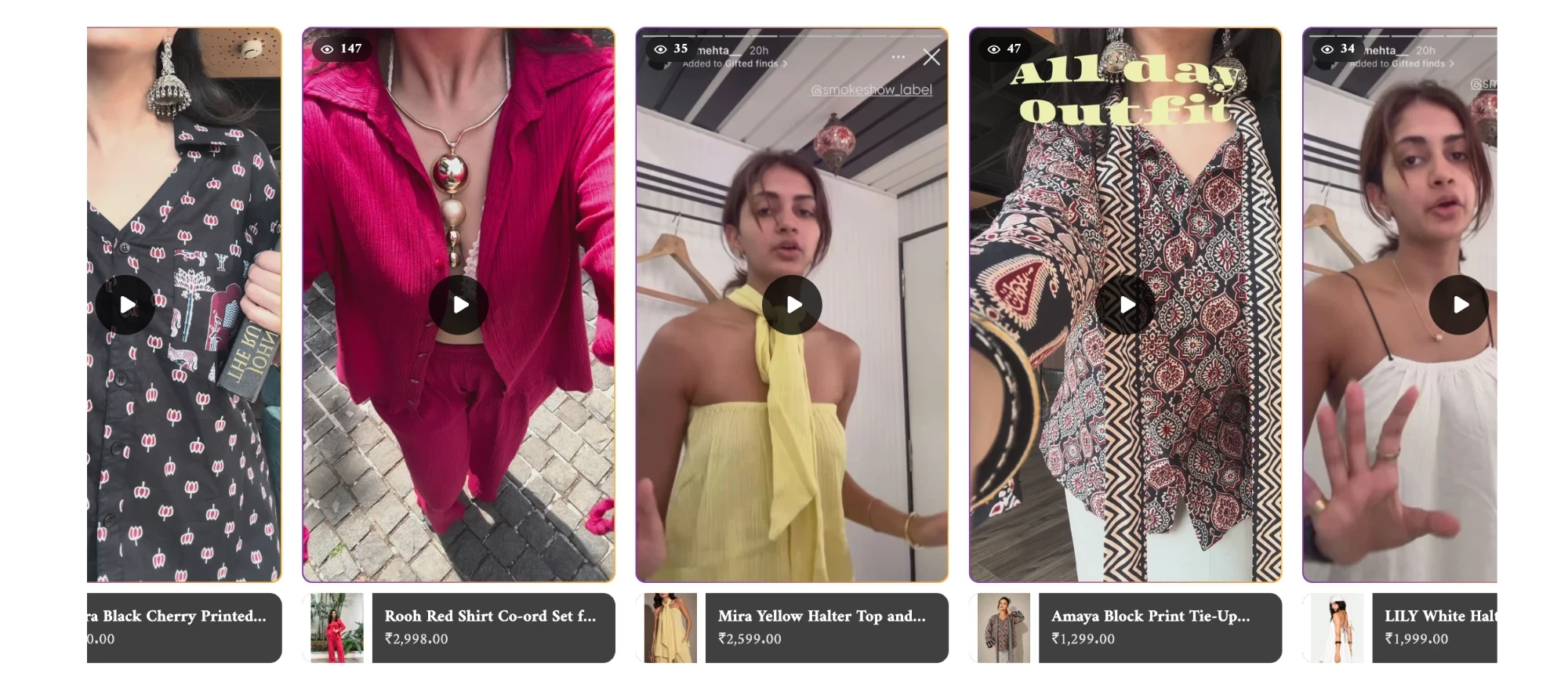
This is a home page row on Spell by Smokeshow, one of the stores that uses the app. Each clip has a product card with the name and price under it. You'd do the same with a customer's review clip, and show it on the product's own page.
What to ask for in a review clip
| Product type | Ask the customer to show |
|---|---|
| Clothing | Fit on their body, how it moves, one styling idea |
| Skin and beauty | Their routine, the feel, and a result over time |
| Food and drink | The first taste and how they use it |
| Home | The item in their space, and size next to something familiar |
| Gadgets | The setup, and one thing it fixed |
Keep it short and honest. A clip with "it's a bit small, so size up" is more trusted than a perfect ad.
Make clips easy to find
- Name: "Review: [product], [month]".
- Order: put your clearest clip first.
- Draft: if a clip is outdated or a customer asks to remove it, set it to Draft to hide it in about a minute.
- Log: keep the customer's name, OK, and post link in a spreadsheet, not in the app.
What this can't do
- It doesn't collect video reviews. You ask by email or DM, and upload the files.
- It doesn't turn text reviews into video. A made-up video from someone's text would be a fake review.
- It doesn't import review text. The star rating comes from your reviews app's product fields, not from the clips.
- One product per clip.
- No creator credit from imports. The app doesn't keep a name or post link, and the docs say "Show social handle" doesn't show on the store yet. Use the file's alt text as a caption to credit, and turn on "Show captions".
- New app. Launched September 25, 2026. On November 12, 2026, it had 5.0 stars from 7 reviews.
FAQ
Can I use a text review as a video?
Don't fake a video. You can show a real customer's real words as subtitles on a real clip they sent you. You can't invent a person or a clip. The FTC's rule bans fake reviews.
How long should a review clip be?
15 to 30 seconds is a good start. That's our rule of thumb, not a tested number.
Do I need the customer's permission to add subtitles?
Subtitles are the words they said, so it's part of the same use. Mention it when you ask. If you edit the clip in any way, say so.
Can I put customer clips on every product page?
Yes, with one Product page widget (up to 24 clips) that shows each product's tagged clips. Add more widgets for more clips.
What if a customer changes their mind?
Set the clip to Draft, delete it, and delete the file from Shopify Content → Files. See the takedown steps.
How do I see if the clips help?
Use Analytics in the app. See how to measure ROI.
Next step: ask your first 10 customers
Pick 10 happy customers. Send the message above. Import what comes back, add subtitles, tag the product, and add a Product page strip.
Foxr Shoppable Videos & UGC is free on the Shopify App Store. More on customer content: UGC conversion rates and a test plan.
Facts checked against the app's documentation and listing on November 12, 2026. FTC pages read the same day. Not legal advice.